Crosswind Calculator – Help
This help page explains every feature of the Crosswind Calculator — the app you're currently using in your browser or that you installed from the Play Store. The menu on the top left (☰ icon) takes you to any of the features below.
- Getting Started & Home
- Crosswind / Headwind Calculator
- Wind Triangle
- Calculations
- Unit Converter
- METAR
- Weather
- Glidepath
- Fuel Planning
- Take-off & Landing Distance
- Squawk Codes
- E6B Simulator
- Weight & Balance
- Settings
Getting Started & Home
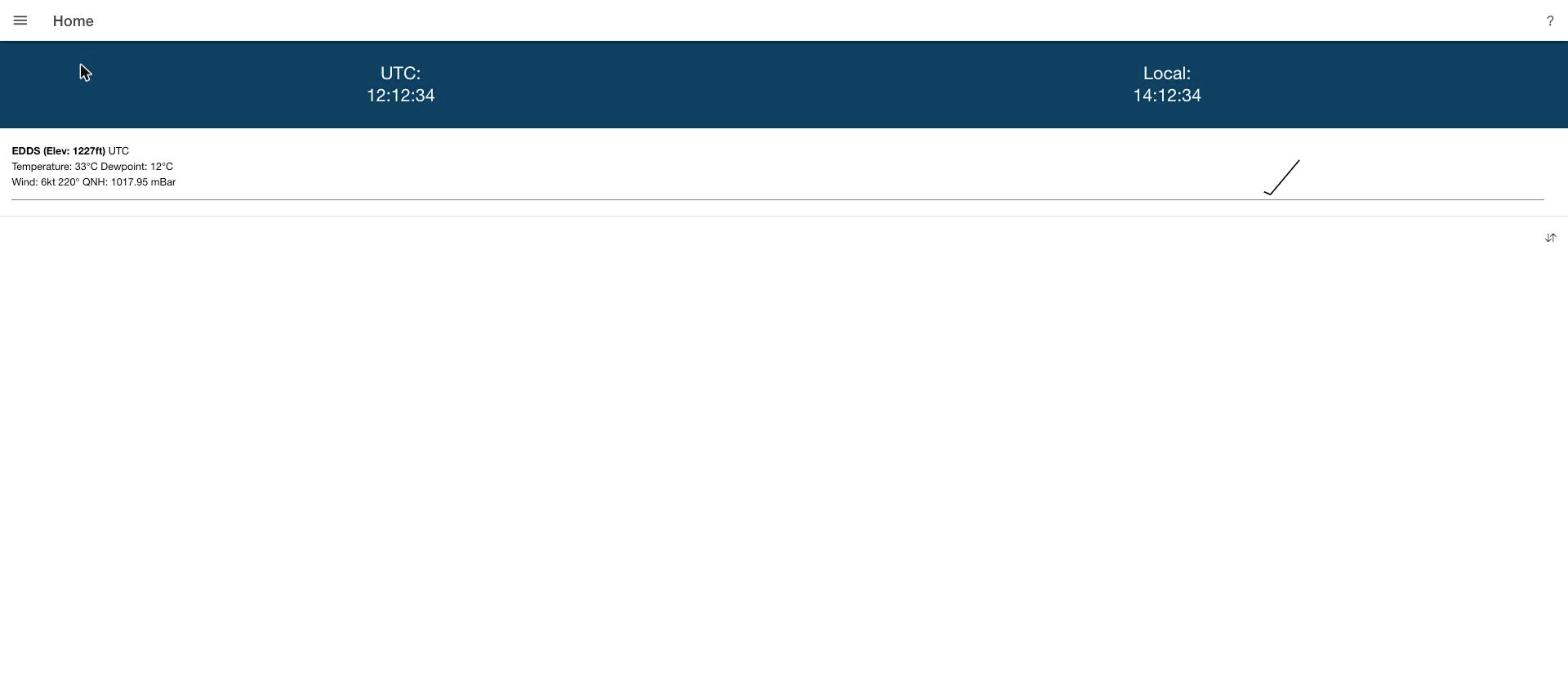
The home screen shows freely configurable widgets: a clock (local time and UTC), a timer, a list of your favorite METAR stations, and a weather overview. Which widgets are shown is controlled under Settings → Widgets. On many pages, the ? icon in the top right opens a short, context-specific help right inside the app.
The menu (☰) in the top left is available from every page and lists every feature of the app.
Crosswind / Headwind Calculator (Wind)
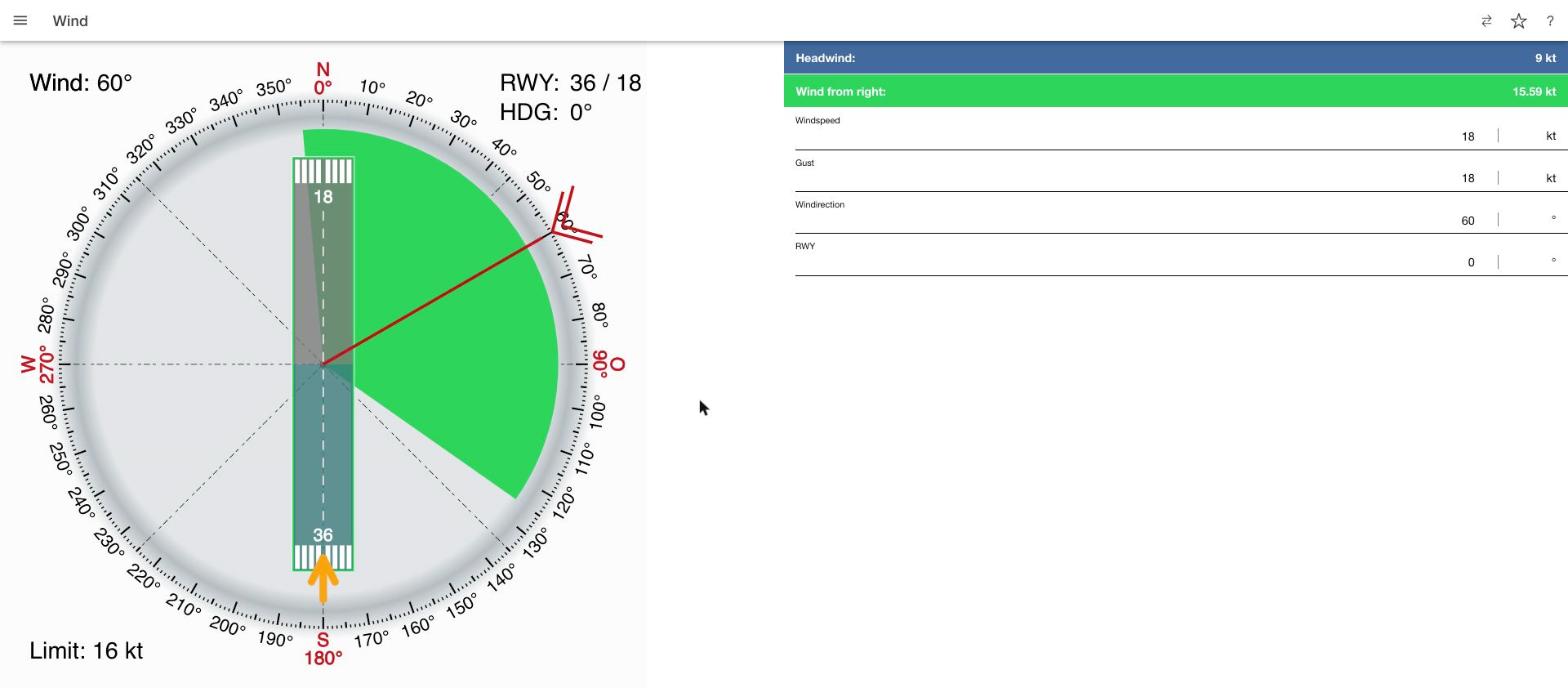
The core of the app: enter wind direction, wind speed and, optionally, gusts, and the app instantly calculates the crosswind and headwind/tailwind component for the selected runway.
- In Settings you can set a crosswind limit. If a limit is set, the compass rose shows a green sector (limit respected) and — once a gust value is entered — a yellow sector (limit will be exceeded during gusts).
- The swap icon (⇄) flips the runway direction by 180° (e.g. from 06 to 24).
- The star icon activates the preferred runway configured in Settings.
- Settings also lets you enable a second (alternate) runway — handy for comparing which runway is better depending on wind direction.
Wind Triangle
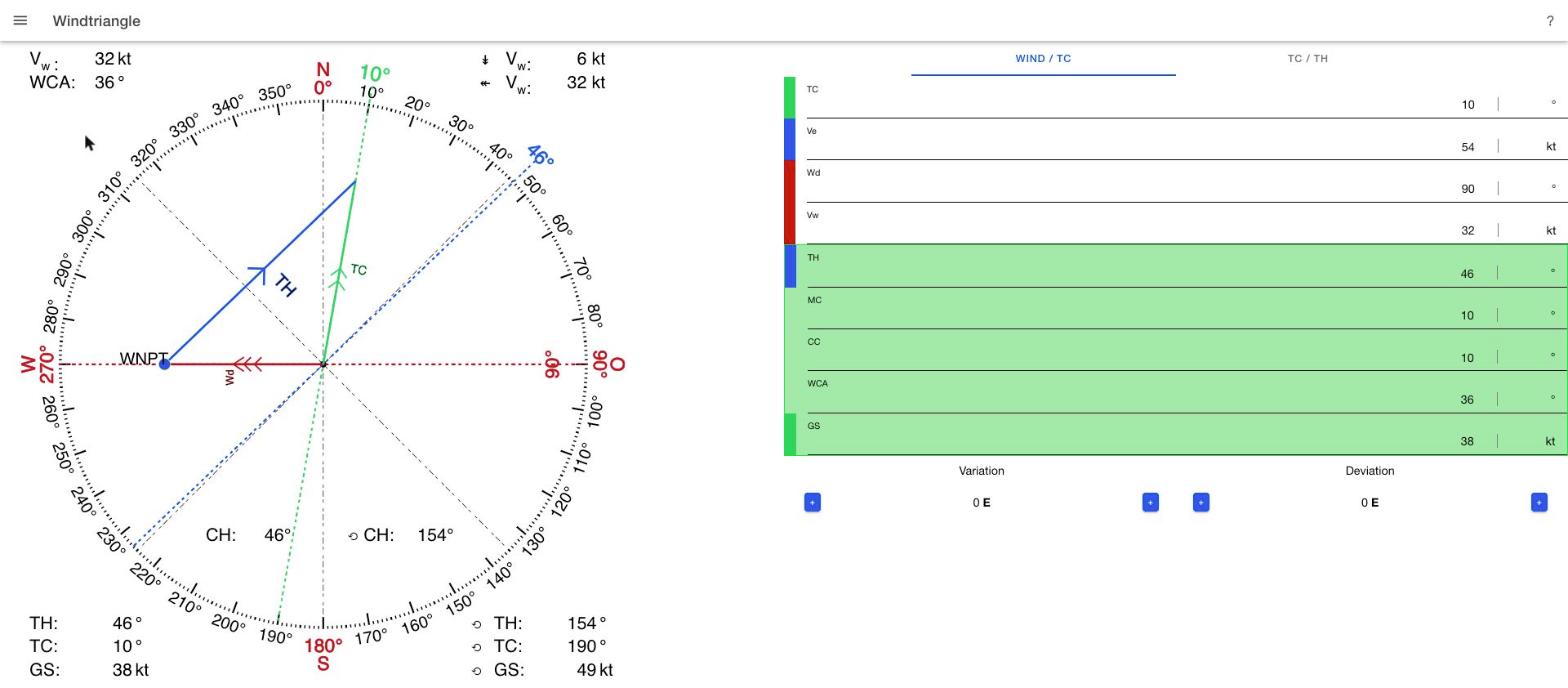
The classic navigation computer for route planning: from true course (TC), true airspeed (TAS), wind direction and wind speed, the app calculates heading, ground speed and wind correction angle — optionally accounting for magnetic variation and compass deviation. Two tabs switch between the calculation directions Wind → Course and Course → Heading.
| Abbreviation | Meaning |
|---|---|
| TC | True Course — course relative to geographic north, without wind or variation correction |
| MC | Magnetic Course — TC corrected for magnetic variation |
| CC | Compass Course — TC corrected for variation and compass deviation |
| TH | True Heading — TC corrected for wind |
| MH | Magnetic Heading — TH corrected for variation |
| CH | Compass Heading — TH corrected for variation and deviation |
| GS | Ground Speed |
| TAS | True Airspeed |
| WCA | Wind Correction Angle — positive with wind from the right, negative with wind from the left |
| WNPT | Wind No-effect Point — the theoretical point at which wind has no effect on navigation |
Calculations
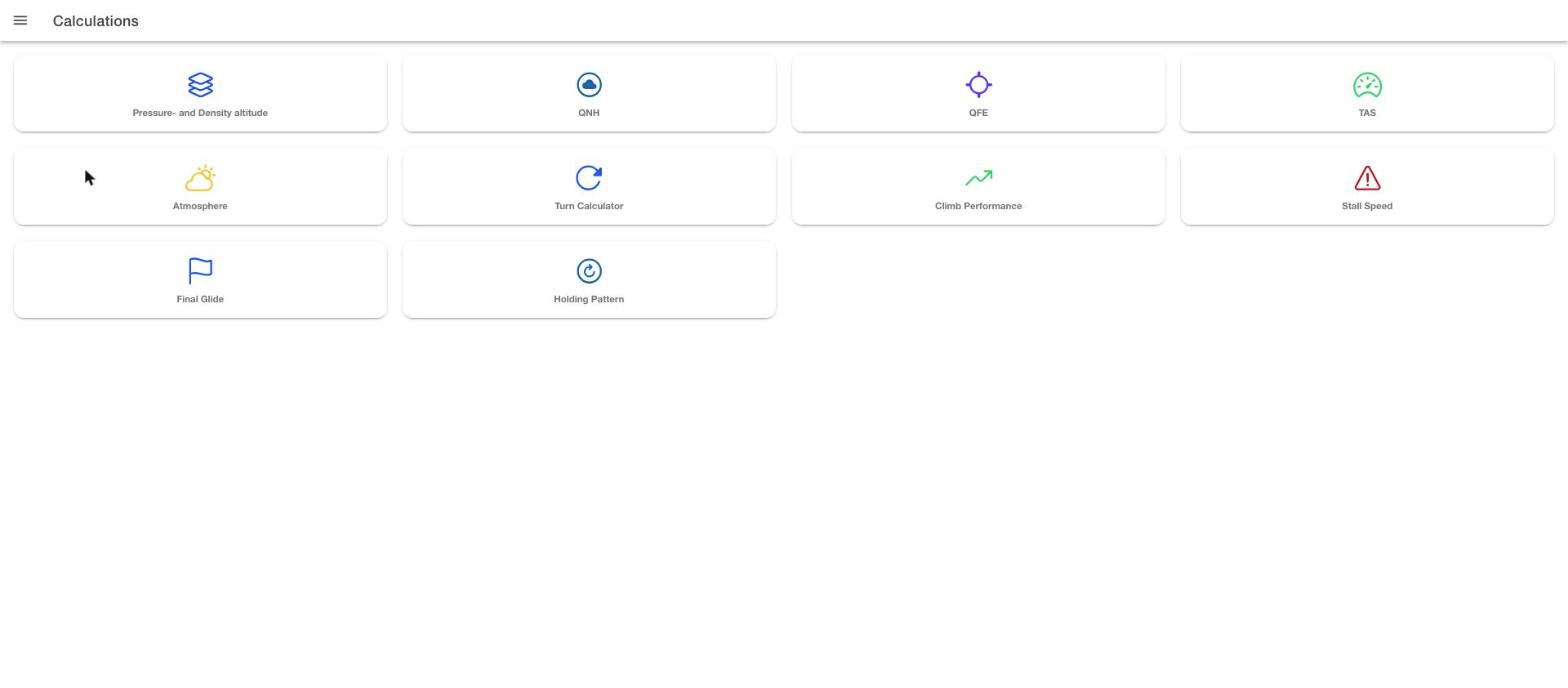
A collection of ten standalone performance and flight-condition calculators, each reachable via its own tile:
- Pressure & Density Altitude — calculates pressure altitude and density altitude from field elevation, QNH and temperature.
- QNH — converts between QNH, QFE and field elevation.
- QFE — field pressure calculator.
- TAS — derives true airspeed from indicated airspeed, altitude and temperature.
- Atmosphere — standard-atmosphere reference values (ISA deviation, etc.).
- Turn Calculator — bank angle, turn radius and time to turn.
- Climb Performance — climb rate and climb angle.
- Stall Speed — stall speed depending on configuration and load factor.
- Final Glide — calculations for the final approach.
- Holding Pattern — time and distance planning for holding patterns.
Unit Converter
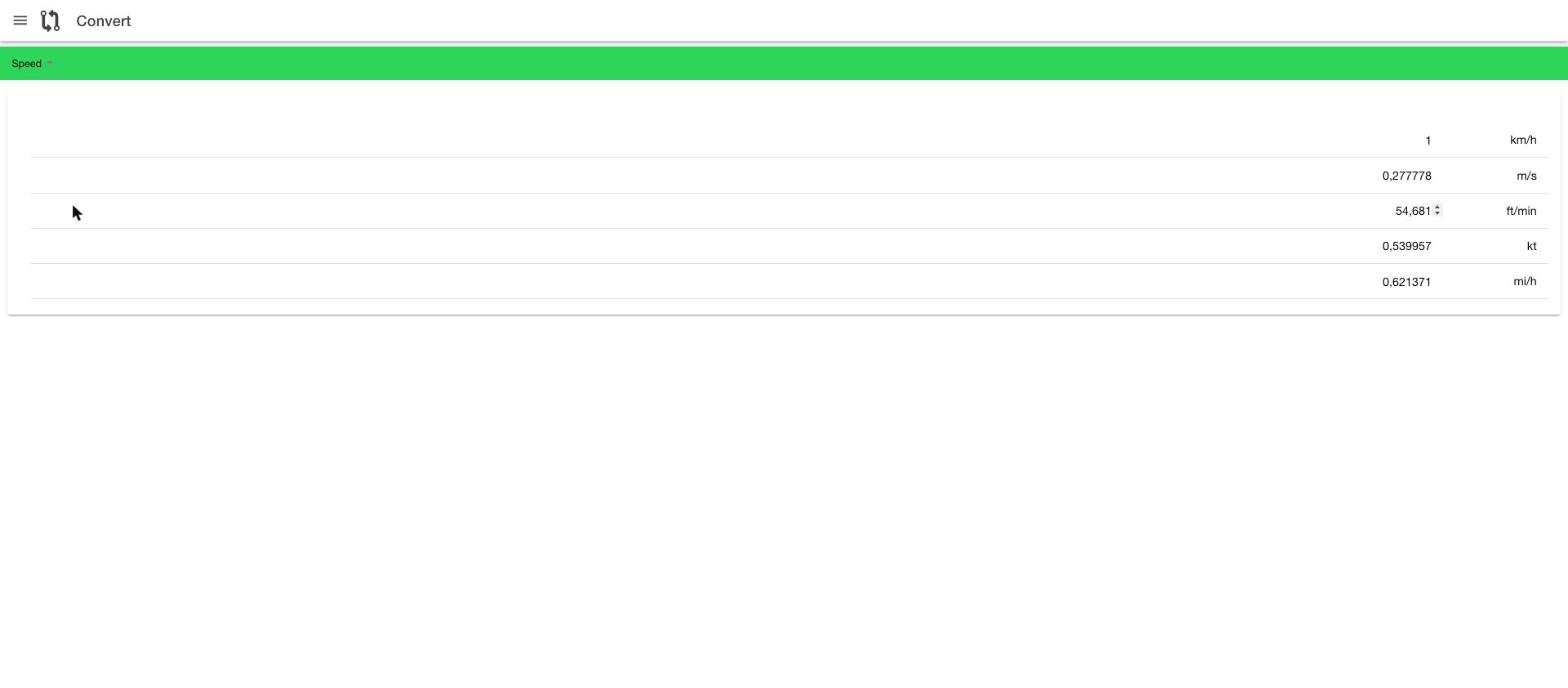
A universal unit converter for every quantity commonly used in aviation: length, pressure, distance, speed, volume, torque, weight, fuel burn per distance or time, temperature, and degrees/radians. Pick the category in the green bar at the top, then enter a value in any row — every other unit updates live.
METAR
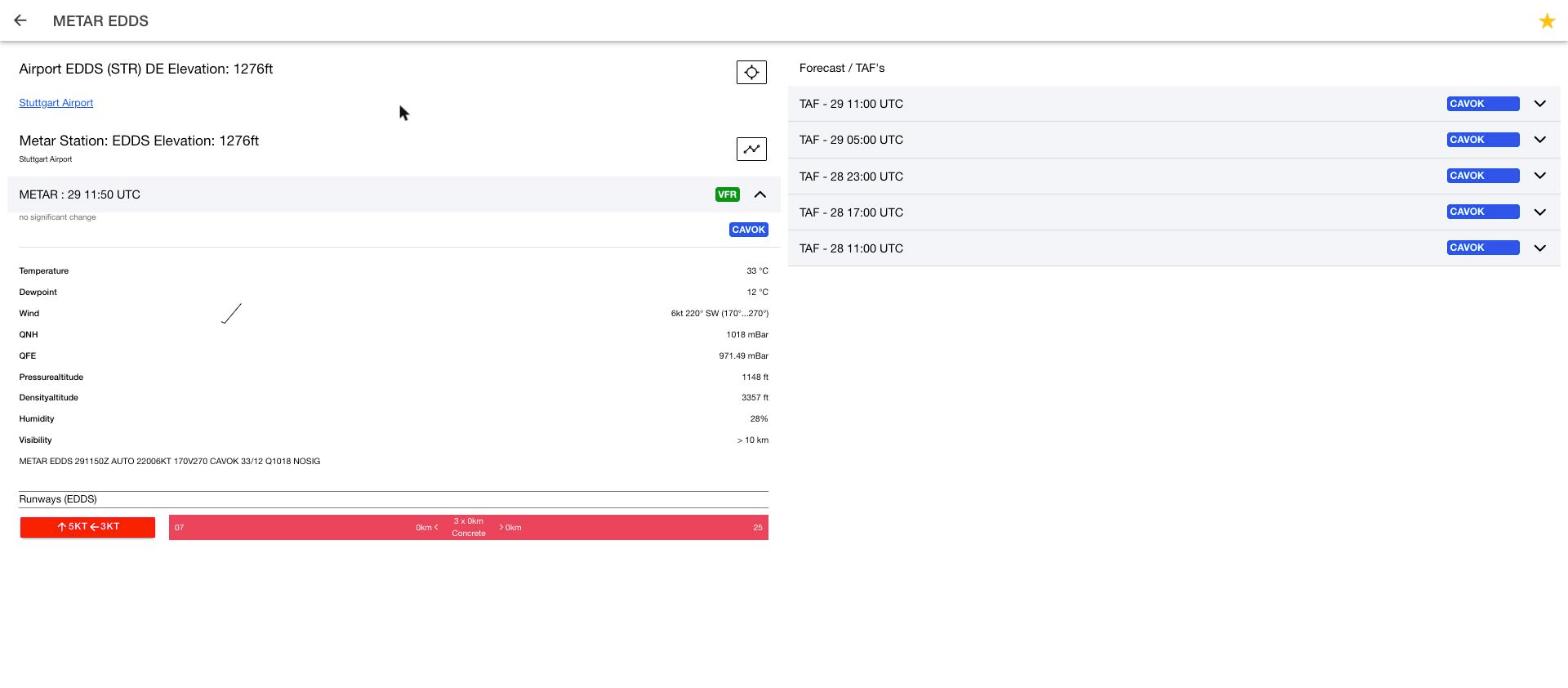
Use the search field to find airports worldwide (by ICAO code, name, or location). A station's detail page shows:
- the current METAR decoded in plain language (temperature, dew point, wind, QNH, QFE, visibility, cloud cover) plus the raw METAR text,
- automatically calculated pressure and density altitude for the airport,
- the current TAF forecasts from recent reports,
- the crosswind/headwind component for each runway, derived from the current METAR.
Use the star icon in the top right to save a station as a favorite — favorited stations then appear in the METAR widget on the home screen. In the favorites list you can swipe an entry left to delete it, and use the arrows in the bottom right to reorder entries via drag and drop. If GPS is enabled in Settings, the nearest stations to your current location are also shown.
Weather
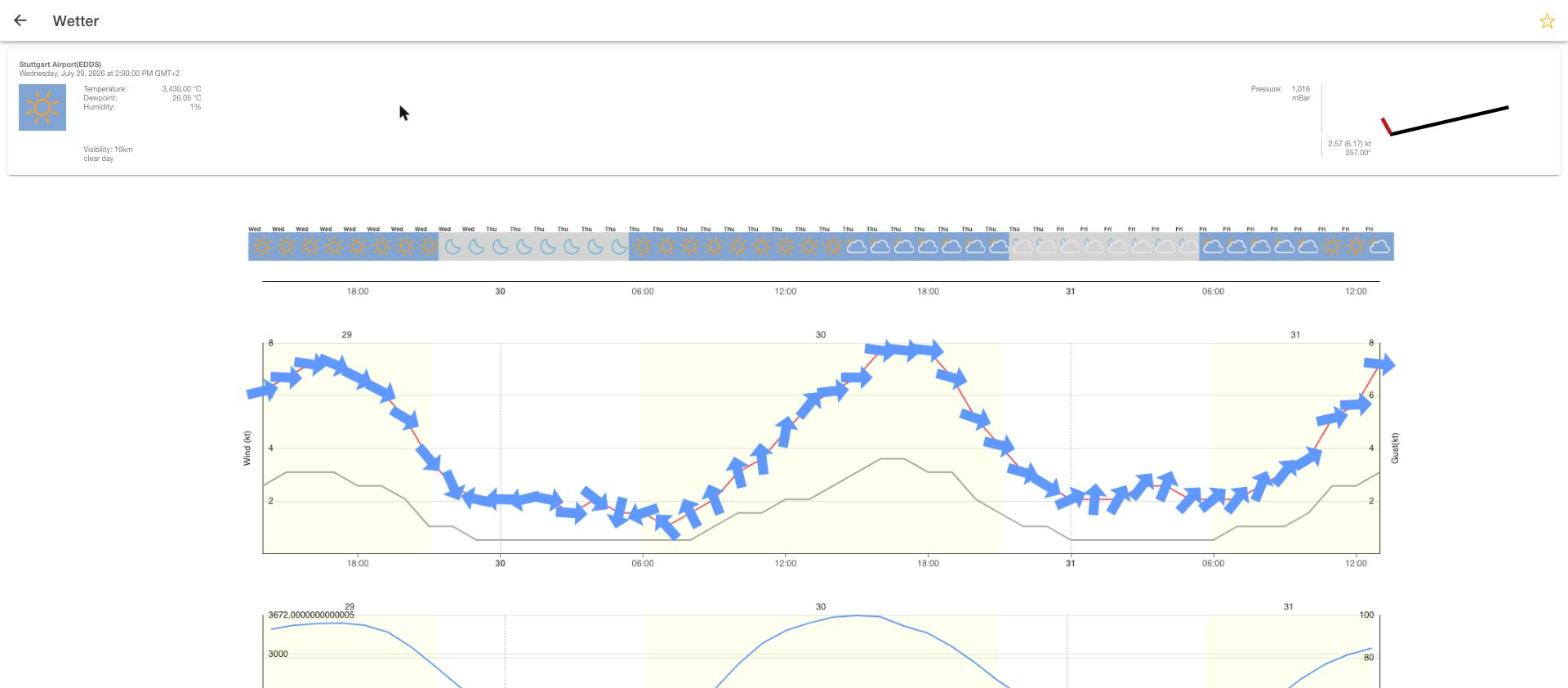
As with METAR, pick a location via the search field. The detail page shows a multi-day forecast with temperature, wind (direction and speed as arrows), gusts, precipitation, humidity and pressure over time, plus sunrise and sunset. Weather data comes from an external weather service (Pirate Weather) — for full functionality you can add your own API key in Settings.
Glidepath
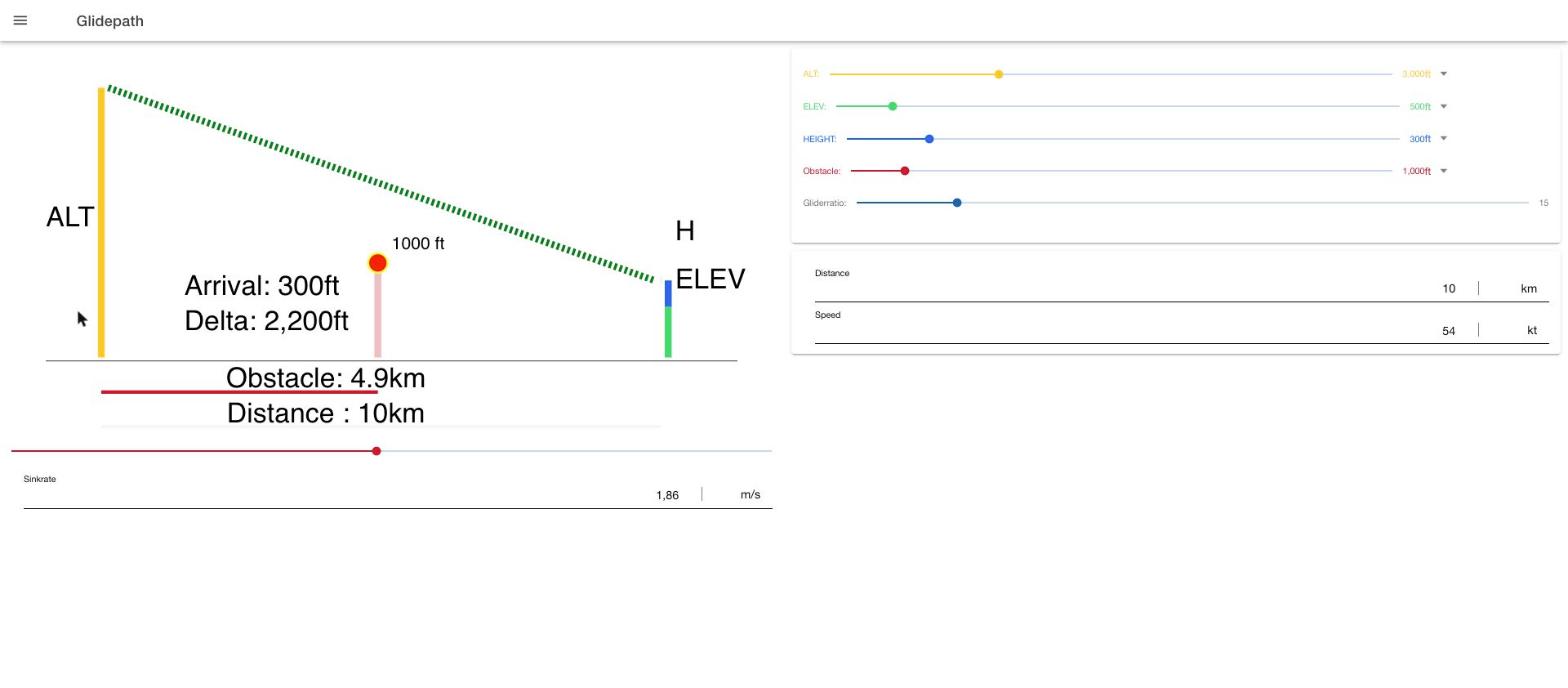
Plans the descent for an approach: from current altitude, field elevation, distance, airspeed and glide ratio, the app calculates the required sink rate and the arrival height over a defined obstacle. Every value can be adjusted via slider or direct numeric entry; the graphic updates live.
Fuel Planning
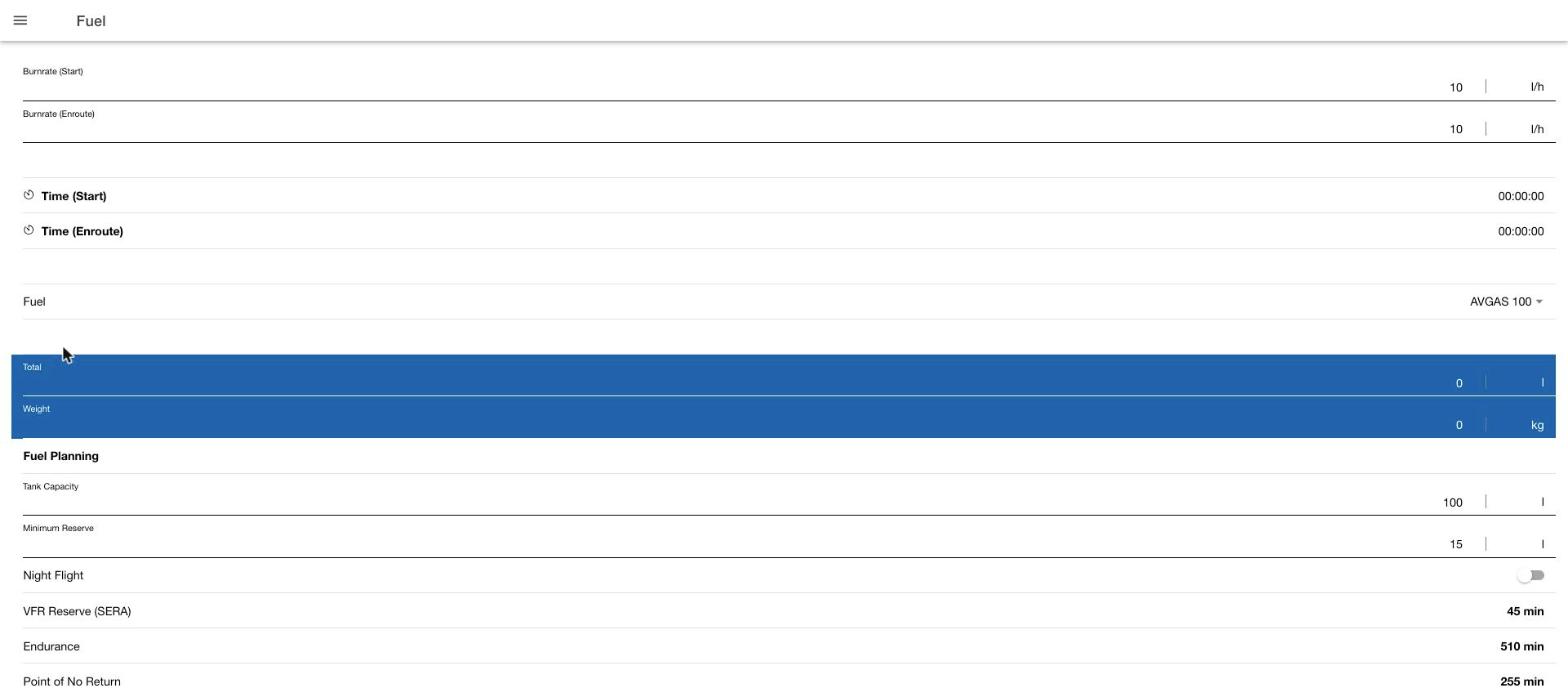
Calculates fuel burn from burn rates and times for start-up and en-route flight (total quantity and weight, depending on the selected fuel type). In the Fuel Planning section you additionally enter tank capacity, minimum reserve and, if applicable, night flight; from this the app derives the VFR reserve per SERA, maximum endurance, and the Point of No Return.
Take-off & Landing Distance
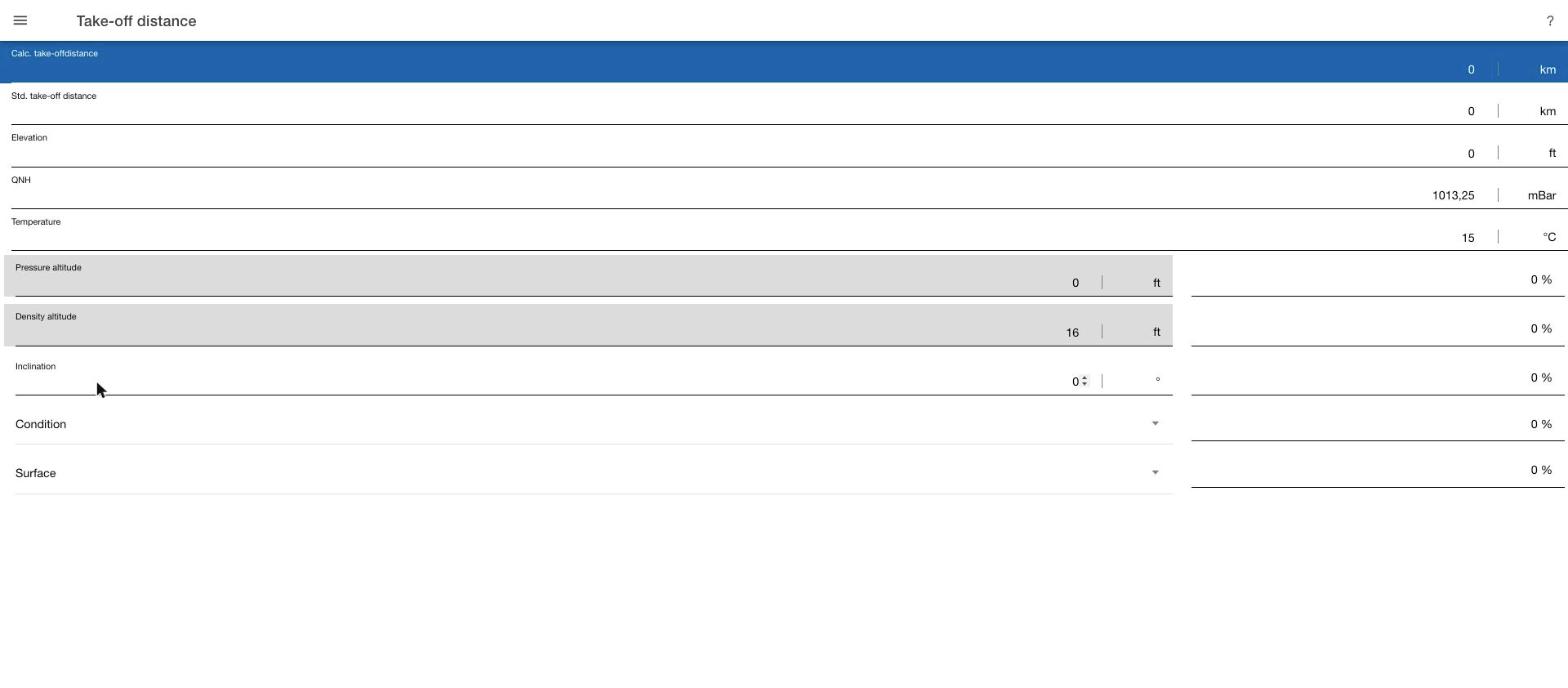
Calculates the expected take-off or landing distance starting from the standard distance given in the flight manual. Correction factors for field elevation/pressure (pressure and density altitude), temperature, runway slope, and runway condition/surface (e.g. wet grass, snow, soft ground) add surcharges or discounts to the standard distance. The calculation follows the German LBA flight-safety notice FSM 3/75; if the flight manual contains its own correction data, that should be used instead. Detailed background (German): AOPA – calculations and formulas for pilots. Landing distance works on the same principle.
Squawk Codes
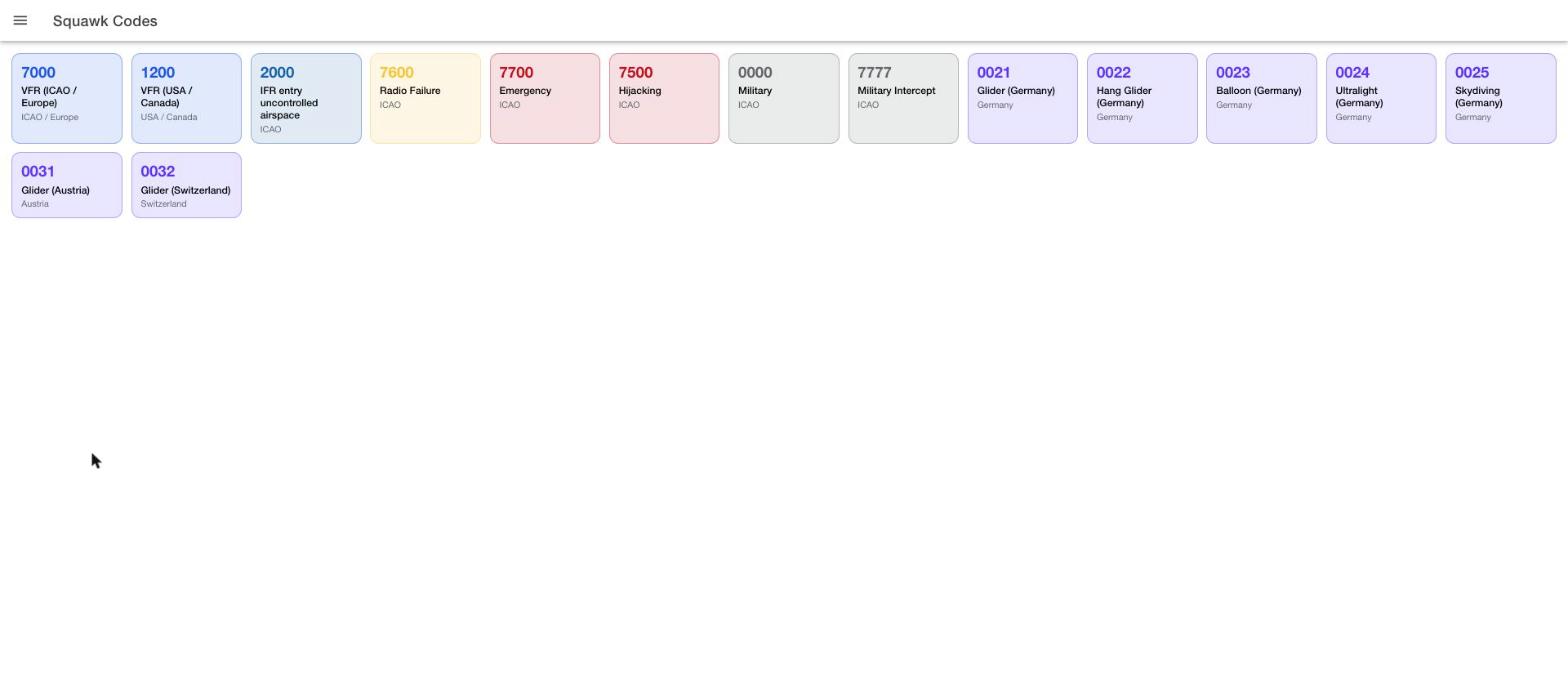
A reference table of the most important transponder codes: internationally standardized ICAO codes (VFR, emergency 7700, radio failure 7600, hijacking 7500, military, IFR entry into uncontrolled airspace) as well as country-specific codes for Germany, Austria and Switzerland (gliders, hang gliders, balloons, ultralights, skydiving, among others).
E6B Simulator
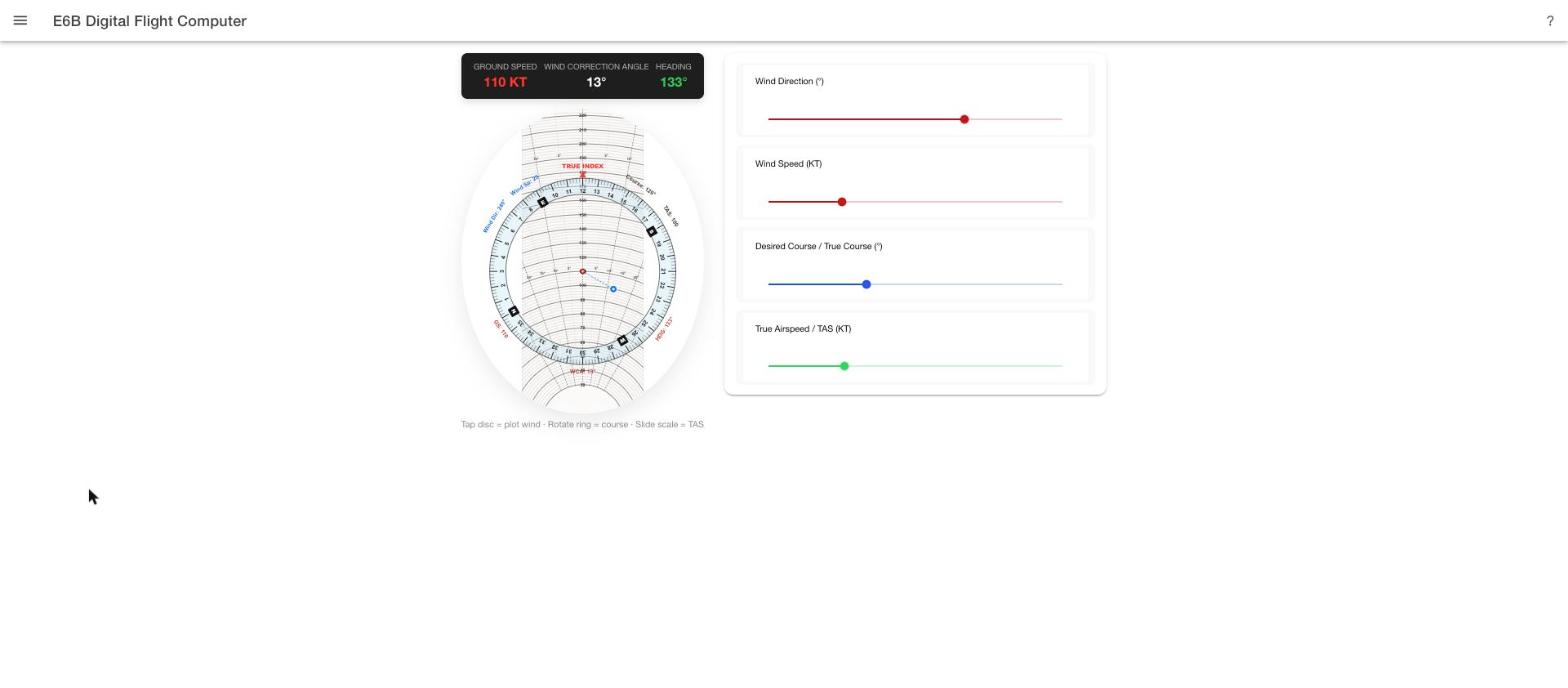
A digital recreation of the classic mechanical E6B navigation computer (wind triangle disc). Given wind direction, wind speed, desired course and true airspeed (TAS), it calculates ground speed, heading and wind correction angle (WCA).
- Rotate compass ring: tap and drag in the outer ring to set the desired course.
- Slide scale: drag vertically in the inner area to change TAS.
- Plot wind: a short tap in the inner area without dragging places the wind dot at the tapped position — wind direction and speed are calculated from it.
Alternatively, all four values can be entered precisely as numbers via the sliders on the right; the disc and sliders stay in sync. The calculation uses the standard wind triangle formula (sin WCA = crosswind component ÷ TAS) and doesn't account for magnetic variation or compass deviation.
Weight & Balance
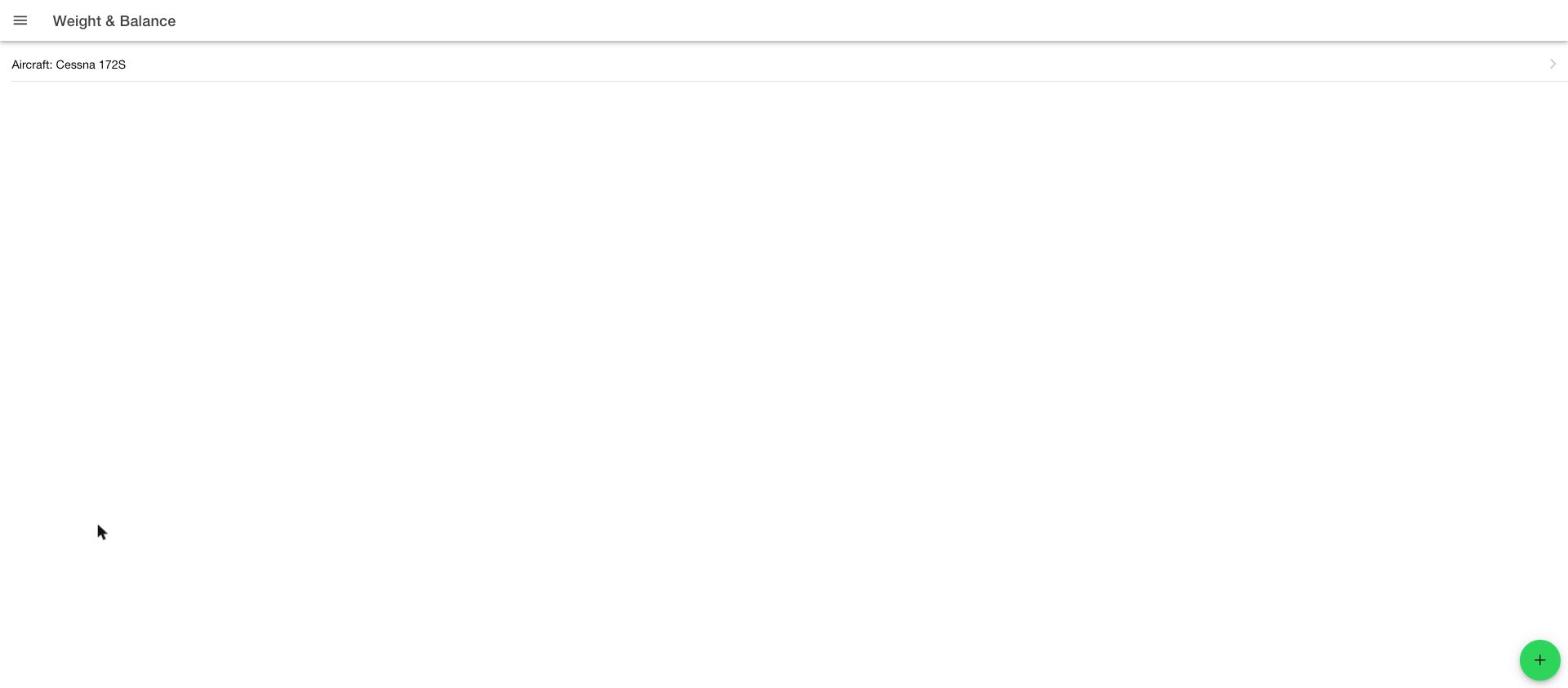
Manage any number of aircraft profiles and check, for any loading, whether weight and center of gravity stay within limits. Use the + icon in the bottom right to add a new aircraft — either from a template (e.g. Cessna 172, Piper PA-28, Diamond DA40) or entirely from scratch. In the list, swipe an entry left to delete it, or tap the pencil icon to edit it.
Creating/editing an aircraft
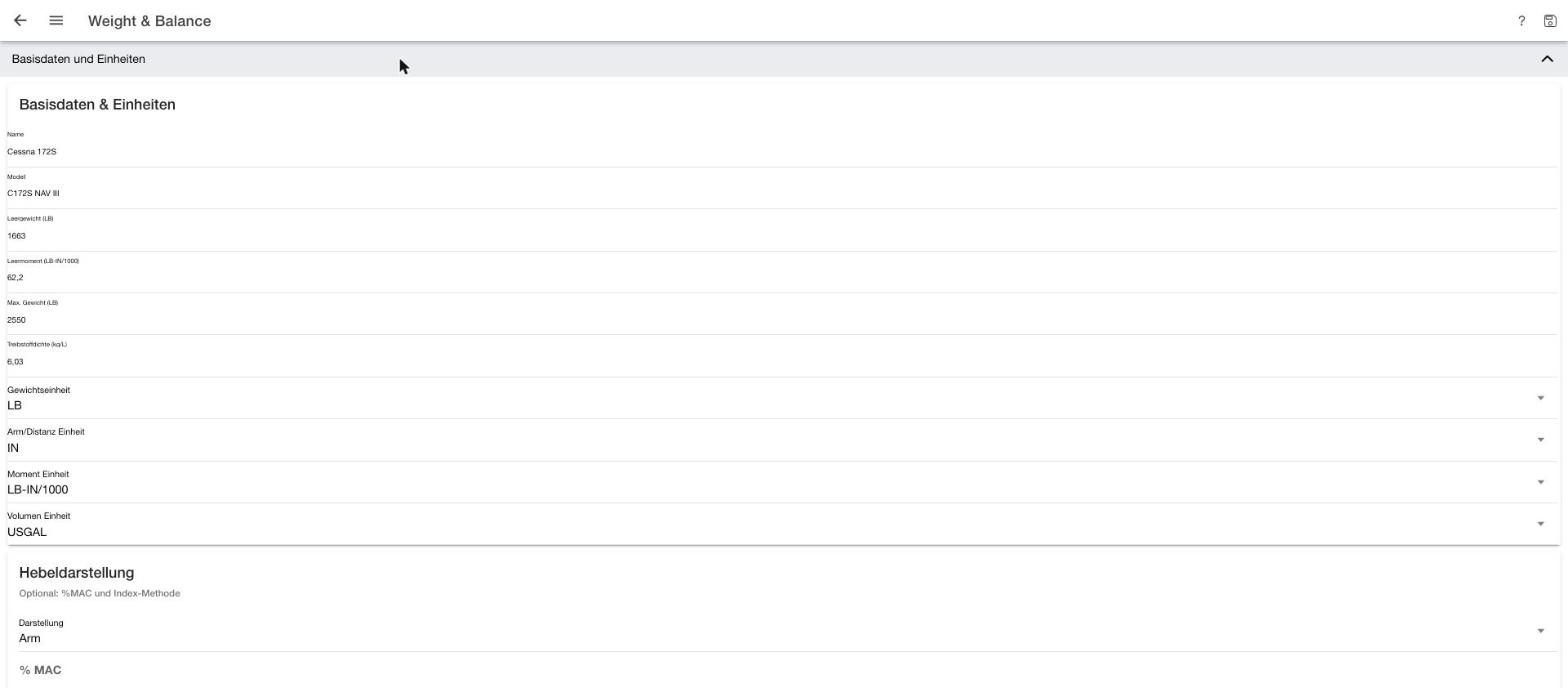
The edit page is split into three collapsible sections:
- Basic Data & Units: name, model, empty weight, empty moment and maximum weight (from the aircraft's weight-and-balance report), fuel density, and the preferred units for weight, arm, moment and volume. Optionally, the arm display can be switched to %MAC or Index if the flight manual uses that method instead of the arm.
- Loading Points: the positions where weight can be loaded (pilot/passenger seats, baggage compartments, fuel tanks), each with its fixed arm per the flight manual.
- Envelopes: the permitted center-of-gravity ranges for different weight bands, as specified in the flight manual.
Entering & evaluating a loading
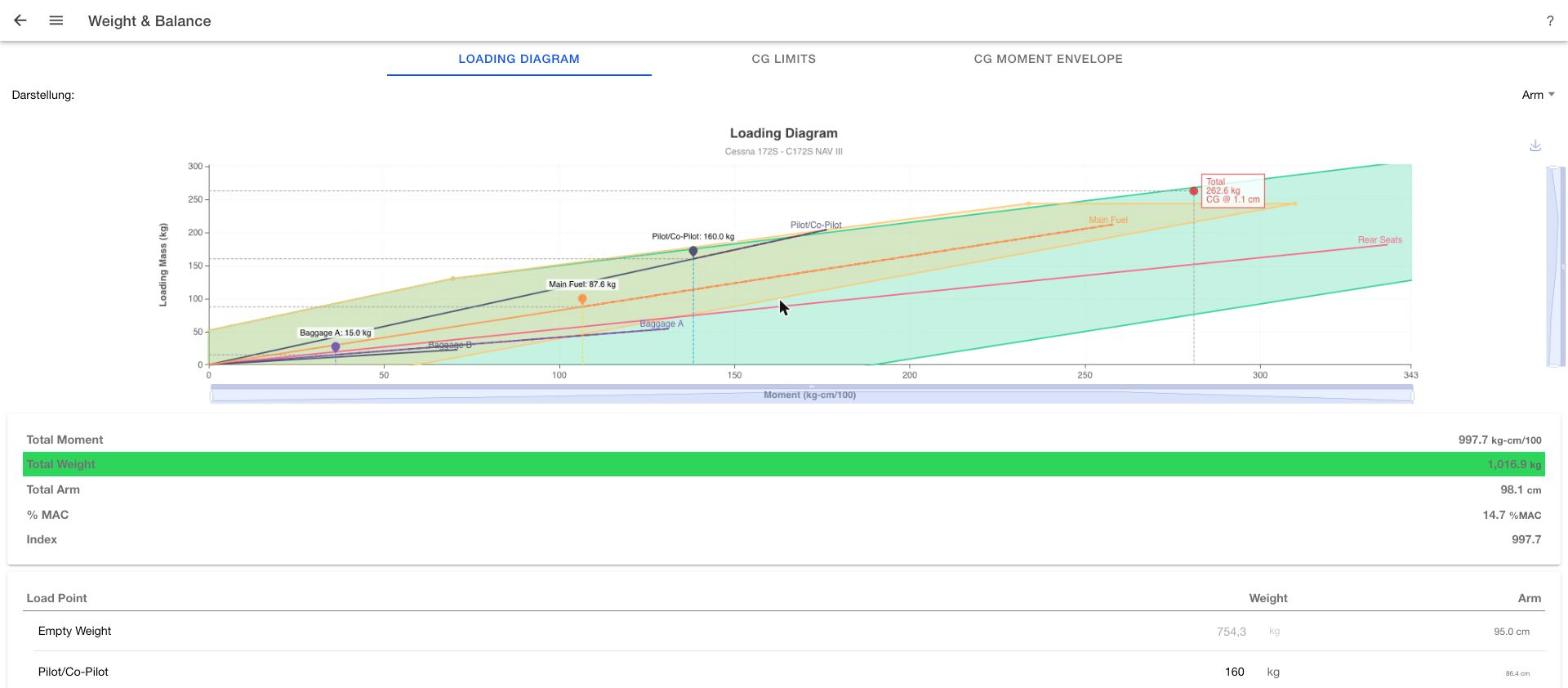
On the aircraft's detail page you enter the actual loading: the weight of occupants and baggage at each loading point, and the fuel quantity (after selecting the fuel type, so the correct density is used for the moment calculation). Below that, three fields immediately show the resulting total moment, total weight and total arm — a warning appears if the permitted weight is exceeded. Three tabs visualize the result:
- Loading Diagram: shows the cumulative moment of each individual loading point. Each entry starts where the previous one ends, so you can immediately see which load shifts the center of gravity forward or aft.
- CG Limits: arm on the X axis, weight on the Y axis. The colored area is the permitted center-of-gravity envelope; the markers for empty, zero-fuel and take-off weight must all fall inside it for the loading to be valid.
- CG Moment Envelope: the same envelope, but with moment (weight × arm) on the X axis instead of arm — the representation more commonly used in flight manuals, which can be checked directly against the weight-and-balance report.
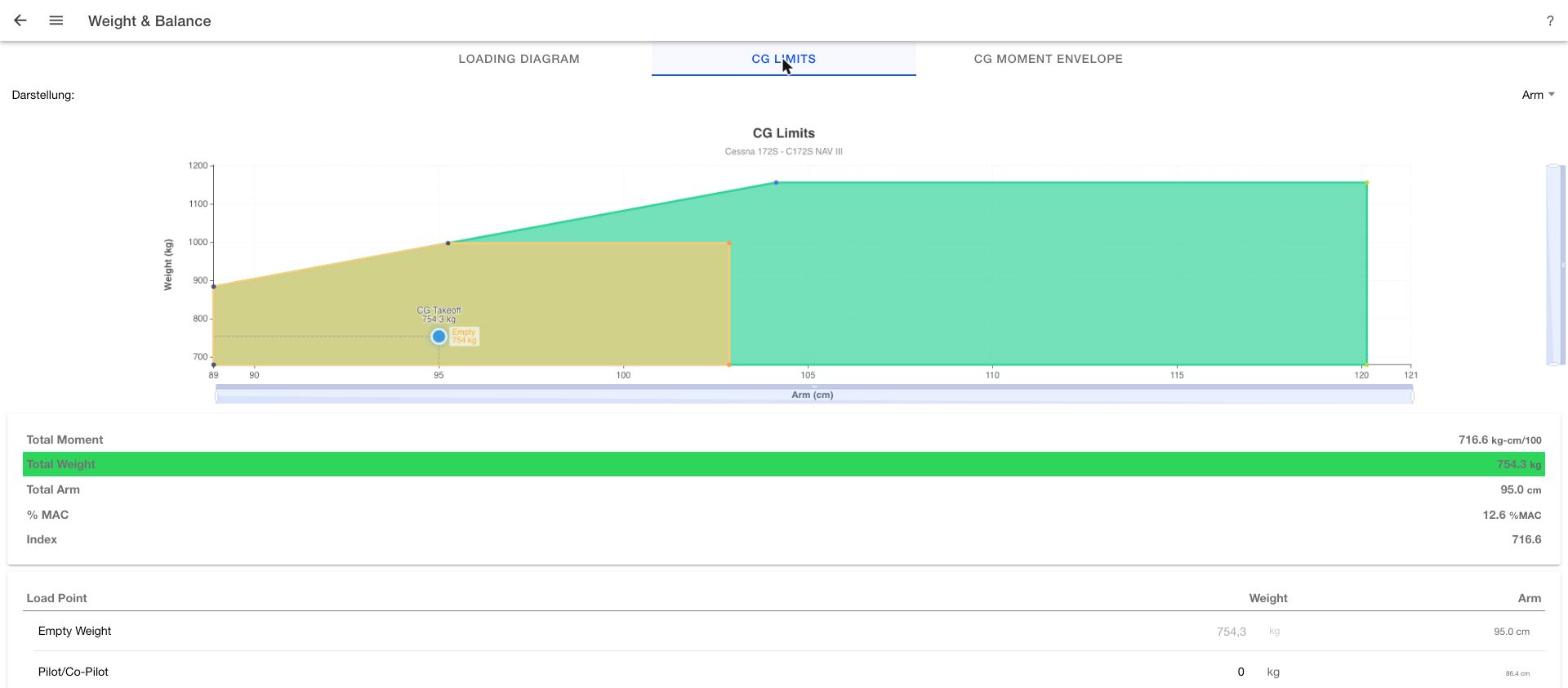
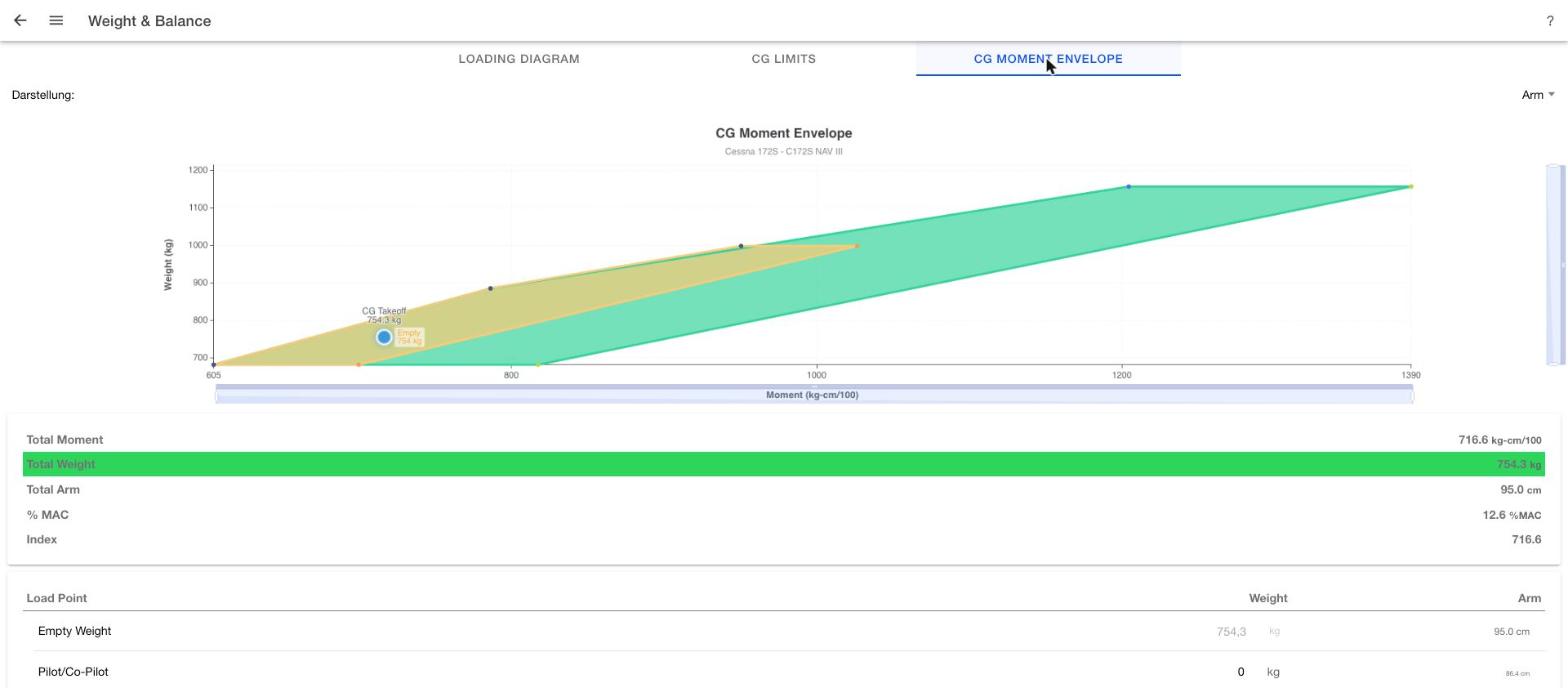
If every marker falls inside the envelope, the loading is valid; if a marker falls outside, the weight or center of gravity is outside the aircraft's limits.
Settings
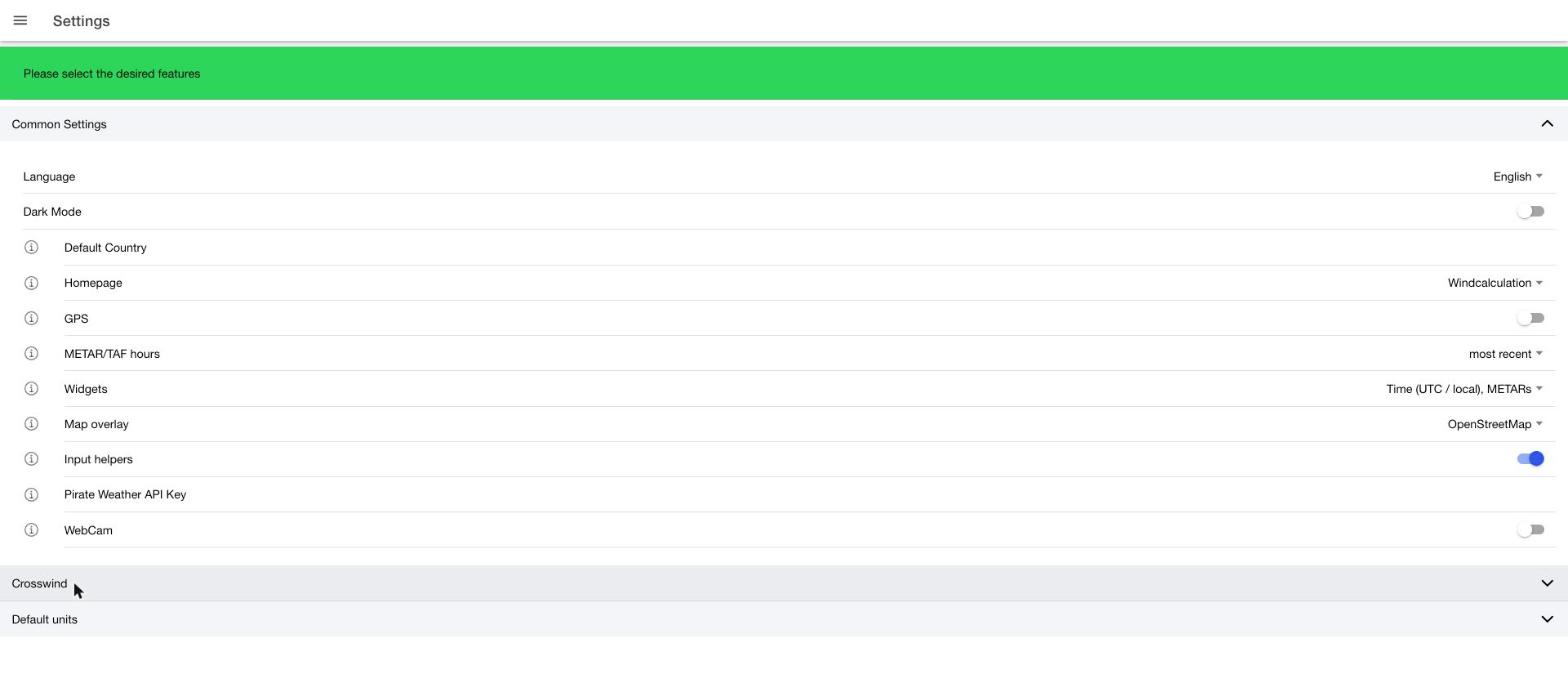
Central configuration for the app, split into three sections:
- Common Settings: language, dark mode, default country, which page opens when the app starts (homepage), GPS usage, the time range for displayed METAR/TAF reports, the active home-screen widgets, the map overlay, input helpers, an optional personal API key for the weather service, and a webcam feature.
- Crosswind: enable/disable the crosswind limit and set its value, default runway direction, and alternate runway display (see Crosswind / Headwind Calculator).
- Default Units: default units for distance, altitude, wind speed, pressure, temperature, speed, volume, fuel burn and weight — used as the starting unit throughout every calculator in the app.