Navaid Simulator – Guide and Training Material
The Navaid Simulator is a training device for radio navigation. You fly on a real aeronautical chart with real beacons (VOR, NDB, DME) and read the instruments as they appear in the cockpit: ADF, RMI, CDI, HSI and DME. Exercises with a hidden map and hidden wind test whether you really understand the indications, and they evaluate your flight.
This guide first explains how to operate the app and then covers the exercises in detail. The exercise chapters are written so that they also work as material for ground school: with learning objective, procedure, assessment, typical errors and notes for flight instructors.
Open the Navaid Simulator (web app) →
- The screen at a glance
- Getting started and station list
- Radios, ident and DME
- Instruments: ADF, RMI, CDI, HSI, HDG
- Flying: heading, wind, time scale, route
- What the map shows
- Blind mode
- Exercises – general
- Exercise: position fix (cross bearing)
- Exercise: position with VOR/DME
- Exercise: course to/from a station
- Exercise: holding
- Suggested lesson plan
- Custom scenarios for instructors
- Terms
- Limits of the simulation
- Settings
The screen at a glance
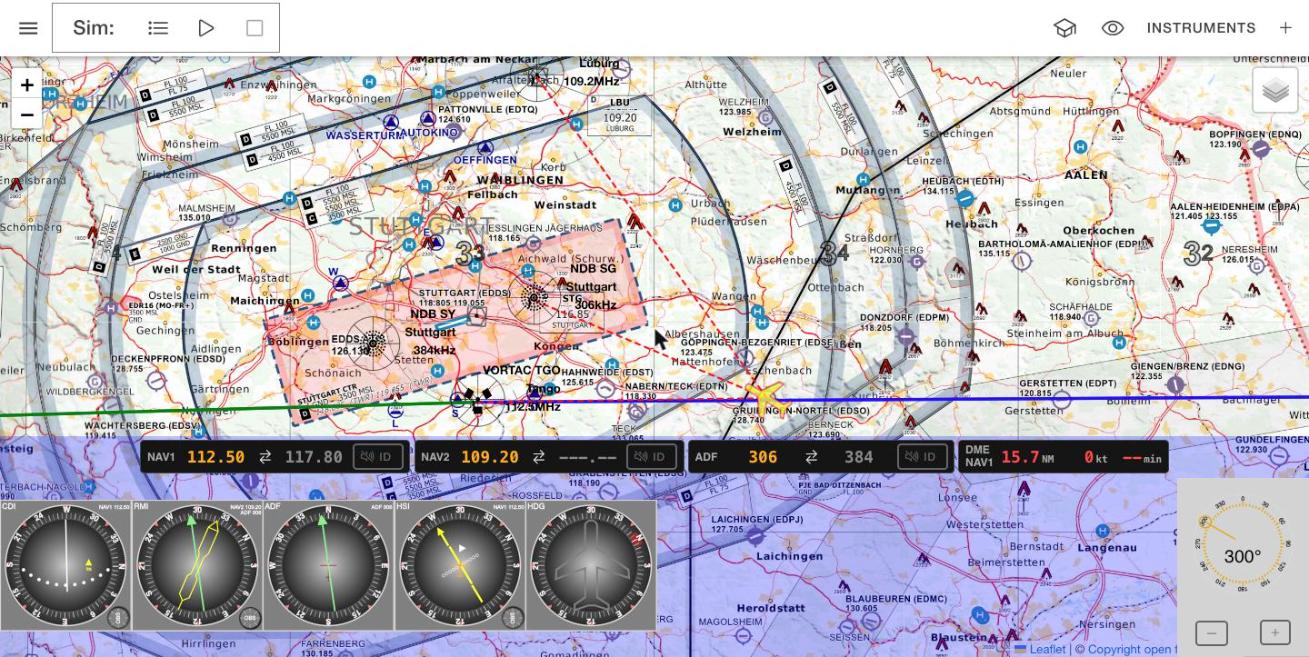
The screen has five areas:
- Toolbar (top). Left: ☰ opens the app menu (home, legals, settings and this guide). Next to it the Sim area: the list icon opens the route and simulation menu, ▶ starts, ‖ pauses and ■ stops the simulation. In flight it shows heading (HDG), track (TRK) and ground speed (GS). Right: the mortarboard opens the exercises, the eye toggles blind mode, Instruments lists all instruments, and + opens the station list.
- Map (centre). Aeronautical chart by open flightmaps with the beacons from your station list and your aircraft. The layer icon at the top right selects other base maps.
- Radio stack. NAV1, NAV2, ADF and the DME display – see Radios.
- Instruments (bottom left). Up to four instruments plus a heading indicator – see Instruments.
- Heading selector (bottom right). The compass rose sets the commanded heading. Drag the pointer or use − and + for 1° steps.
Getting started and station list
On first start the app loads all VORs and NDBs within 40 NM of the aircraft and presets the radios: NAV1 and NAV2 on the two nearest VORs, the ADF on the nearest NDB, the standby frequencies on the next ones. The CDI is connected to NAV1 with its OBS on the current QDM; the RMI shows NAV2 and ADF. You can start flying right away.
While the simulation is stopped you can drag the aircraft on the map.
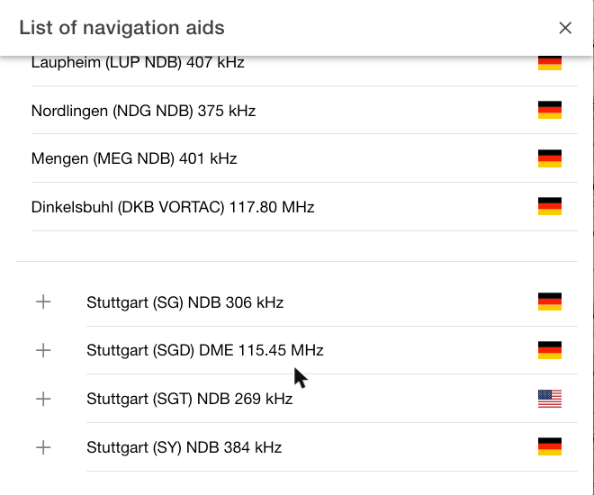
Station list (+). At the top you see what is already in your list, below it the search results. Search by name, ident or place, filter by type with the icons (VOR, VOR-DME, NDB, NDB-DME, TACAN, VORTAC) and add a station with +. The app can only receive and display stations in this list. All beacons of the database are available worldwide.
Changing the training area (e.g. from Germany to the USA): move the map to the area you want, right-click the spot (or long-press it) and choose Move training area here. The app loads the VORs and NDBs within 40 NM of that point and adds them to the list (your existing stations stay), tunes the radios as on first start, sets CDI/HSI on NAV1 to the QDM and places the aircraft on the point. The position is saved, so the area survives a restart. Outside Europe, where open flightmaps has no chart, the app switches to OpenStreetMap with OpenAIP aeronautical data.
Radios, ident and DME

As in the aircraft, receivers and indicators are separate. The stack contains three receivers:
| Radio | Receives | Frequency range |
|---|---|---|
| NAV1, NAV2 | VOR (with DME if available) | 108.00–117.95 MHz, 50 kHz steps |
| ADF | NDB | 190–1750 kHz |
- Active frequency (amber) – the radio receives on it. Standby (grey) – prepared. The swap button ⇄ exchanges them, so you can prepare the next station without losing the current one.
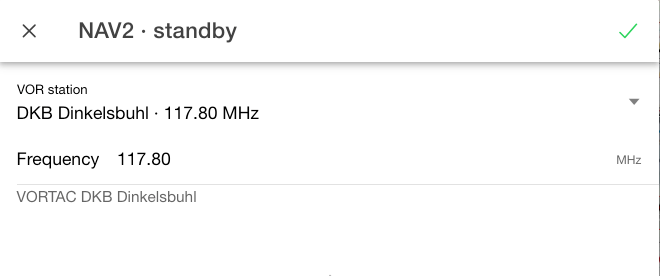
- Tap a frequency to set it. In the dialog you pick the station from your list or type the
frequency as pilots write it:
112.50,112,5or306. Invalid values are flagged and cannot be saved; below the field you see which station is on that frequency.
Ident (ID). With ID you hear the Morse ident of the station the radio is currently receiving – slowly (about 7 words per minute), repeated every 10 seconds, VOR at 1020 Hz, NDB at 400 Hz. Compare it with the ident on the chart. If you hear nothing, nothing is received: no ident, no navigation. Browsers only play sound after a user action, so ID is always off after starting the app.
DME. The fourth box shows the DME of the selected NAV radio: distance in NM, speed in kt and time to station in minutes. Tap DME NAV1 to switch to NAV2. Important for understanding:
- The DME measures slant range. Overhead the station it shows your height (3000 ft ≈ 0.5 NM); further out the difference to ground distance is negligible.
- The displayed speed is the rate at which the distance changes – equal to GS only when flying directly to or from the station. Abeam it drops towards zero.
- Time to station is shown only while closing.
Instruments: ADF, RMI, CDI, HSI, HDG
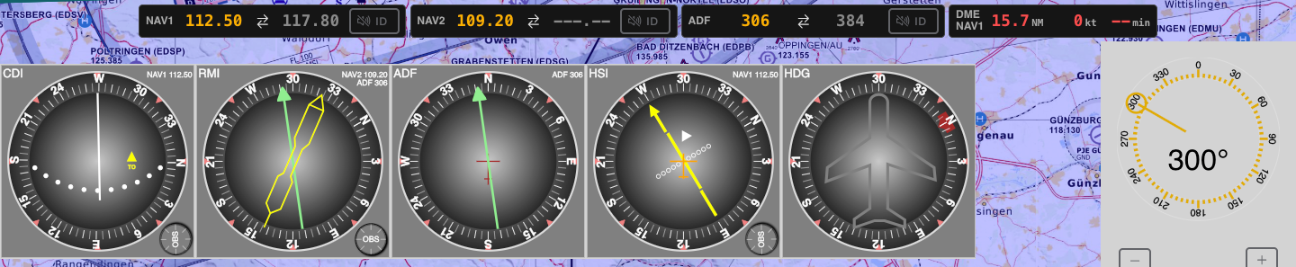
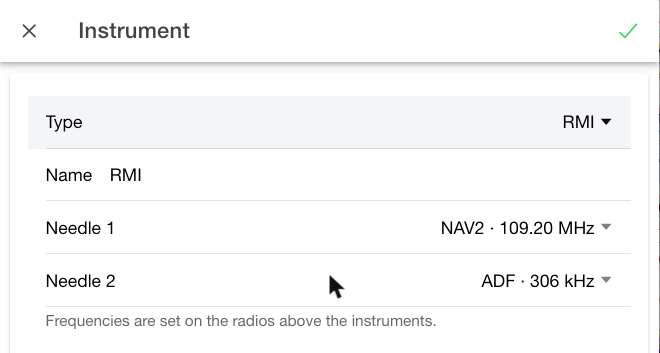
Each instrument is connected to a receiver; the top right of the instrument shows which one, e.g. NAV1 112.50. Tapping the label at the top opens the instrument settings: type, name and source. Instruments in the toolbar lists them all.
Tapping the instrument itself shows the station it is receiving: it is briefly marked on the map with an orange ring. If it lies outside the visible part of the map, the map pans to it without changing the zoom. On an RMI with two needles, the first tap shows needle 1's station, the second needle 2's. Without reception (NAV flag) nothing happens.
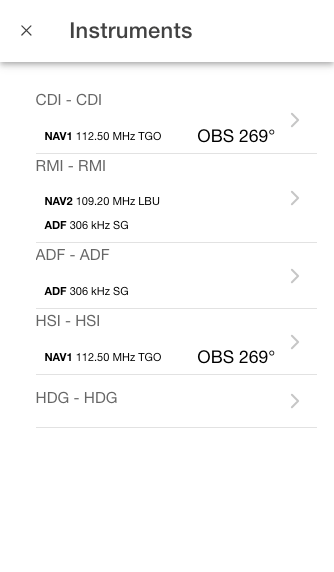
| Instrument | Source | Shows |
|---|---|---|
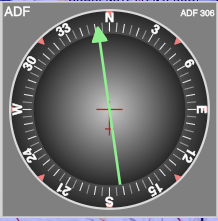
| ADF | ADF | relative bearing to the NDB, fixed card (N up) |
| MDI | ADF | like ADF, card rotatable with the HDG knob |
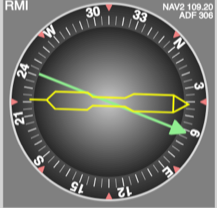
| RMI | needle 1 and 2 each NAV1, NAV2 or ADF | card turns with heading; needle head = QDM |
| CDI | NAV1 or NAV2 | deviation from the selected course (OBS), TO/FROM |
| HSI | NAV1 or NAV2 | CDI on a compass card that turns with heading |
| HDG | – | heading indicator |
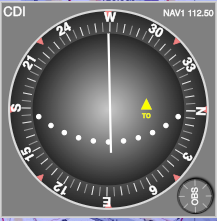
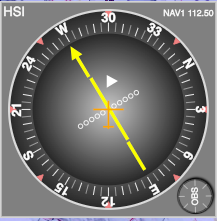
ADF and MDI
The needle shows the relative bearing: the angle from the aircraft's nose to the station, clockwise. The top is always the nose. Hence:
QDM = heading + relative bearing (subtract 360° above 360°), QDR = QDM ± 180°.
On the MDI you turn the card with the HDG knob to the current heading; the needle head then shows the QDM directly – the step towards the RMI.
RMI
The card turns automatically with the heading – the current heading is always at the top. The needle head shows the QDM, the needle tail the QDR, without any arithmetic. Needle 1 is the yellow double needle, needle 2 the green arrow. Both can be connected to NAV1, NAV2 or the ADF.
CDI
With the OBS knob (bottom right) you select a course; the card shows it at the top. The needle shows the deviation from that course, independent of the heading:
- Five dots per side, 2° per dot, full scale at 10°.
- TO means the selected course leads to the station, FM (FROM) that it leads away from it.
- Abeam the station the flag briefly shows OFF; without reception NAV appears and the needle centres.
- Flying roughly in the direction of the selected course, the course lies on the side the needle points to. On the reciprocal the CDI shows the wrong way (reverse sensing).
HSI
The HSI is a CDI on a compass card that turns with the heading. The yellow course pointer shows the selected course on the card, the deviation bar in its centre the deviation (2° per dot), the white triangle TO/FROM. Because pointer and bar turn with the card, the HSI also reads correctly on the reciprocal – there is no reverse sensing. A CDI and an HSI on NAV1 side by side make the difference obvious in class.
HDG (heading indicator)
Shows the heading. Optionally with HDG knob and heading bug, which you enable in the instrument settings.
Flying: heading, wind, time scale, route
Free flight. Without a route, ▶ starts the simulation at the aircraft's current position. Use the heading selector at the bottom right to set the commanded heading; the aircraft turns onto it at standard rate (3°/s). While stopped, a new heading applies immediately.
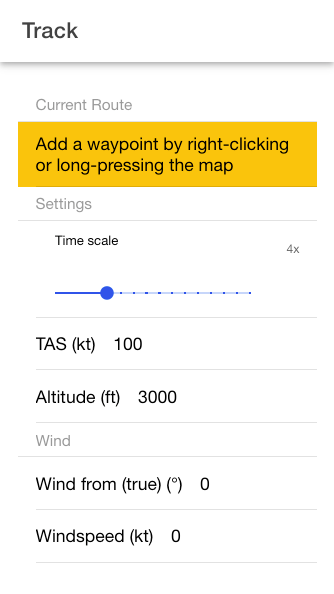
In the simulation menu (list icon next to Sim) you set:
- Time scale from 0.25× to 60× (1× = real time). At 1× a full circle takes two minutes, as in the aircraft.
- TAS in knots.
- Altitude in feet. It determines the VOR range by radio horizon (1.23·√altitude; about 67 NM at 3000 ft) and the length of the radials on the map.
- Wind: direction it blows from (true, as in forecasts) and speed in knots. Changes apply immediately, also in flight – the instructor can turn the wind during an exercise.
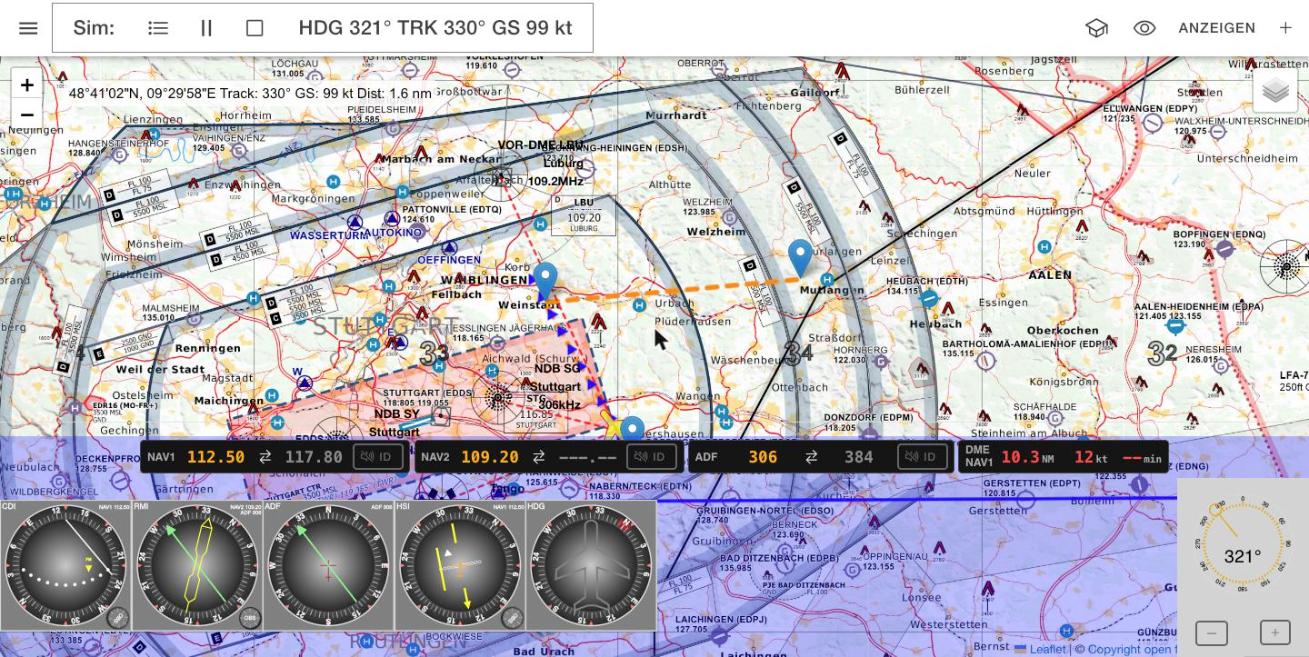
Route and autopilot. A right click (long press on touch screens) on the map adds waypoints; waypoints can be dragged. With a route, ▶ engages an autopilot: it starts at the first waypoint, corrects for wind and starts turning one turn radius before each waypoint. Routes can be saved by name in the simulation menu and loaded again. Route flight is useful for watching the instruments along a known route; practise in free flight.
What the map shows
| Symbol | Meaning |
|---|---|
| Green line from a VOR | radial selected as OBS on the CDI/HSI |
| Blue line from a VOR | the reciprocal (OBS + 180°) |
| Red dashed lines | bearing lines from the aircraft to the received stations |
| Red dashes behind the aircraft | flown path |
| Blue arrow line ahead of the aircraft | track over the next 6 minutes |
| Orange dashed line | route with waypoints |
| Pulsing orange ring | station of the tapped instrument (see Instruments) |
| Green dashed line/racetrack | desired course or holding of the current exercise |
In flight, position, track, GS and distance flown are shown at the top left.
Blind mode
The eye in the toolbar hides everything that gives away the position: aircraft, bearing lines, path, track line, coordinates as well as TRK and GS in the toolbar. Map, stations and the selected radials stay visible – as in the cockpit, where you have the chart and the selected course but cannot see where you are. Exercises switch blind mode on automatically and off again when resolved.
Exercises – general
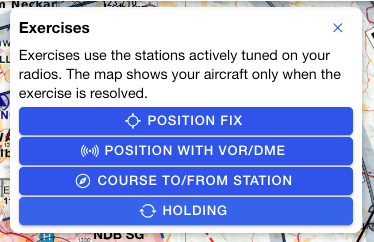
The mortarboard in the toolbar opens the four exercises. All of them use the stations that are actively tuned on the radios and lie within 150 NM of the aircraft – tuning is part of the task. If no suitable station is tuned, the app tells you what to do. At the start the map pans to the stations of the task (not to the aircraft). So the aircraft's position determines where you train; see Changing the training area.
- Blind. The aircraft is moved and hidden at the start; in the course and holding exercises the wind is unknown as well. Only the result shows position, path and wind.
- Task panel. The task is shown above the map. The arrow collapses it to a single line, e.g. → TGO 165° · R-345 in; the buttons stay available.
- Guide (?). During an exercise a ? appears in the toolbar. It shows a step-by-step guide with the numbers of the task below the toolbar. It explains the procedure but never gives away the solution. The setting is remembered. A link in it leads straight to the exercise's chapter in this guide.
- Resolve ends an exercise early; the simulation then stops so the picture does not move on.
There are three ratings:
| Exercise | Very good | Good | Keep practising |
|---|---|---|---|
| Position (cross bearing, VOR/DME) | ≤ 1 NM | ≤ 3 NM | more |
| Course to/from station | mean deviation ≤ 2° | ≤ 5° | more or not intercepted |
| Holding | correct entry and inbound deviation ≤ 5° | correct entry | wrong entry |
Exercise: position fix (cross bearing)
Prerequisite: at least two actively tuned stations whose position lines intersect somewhere within range – e.g. NAV1 and NAV2 on two VORs, or one VOR and the ADF on an NDB.
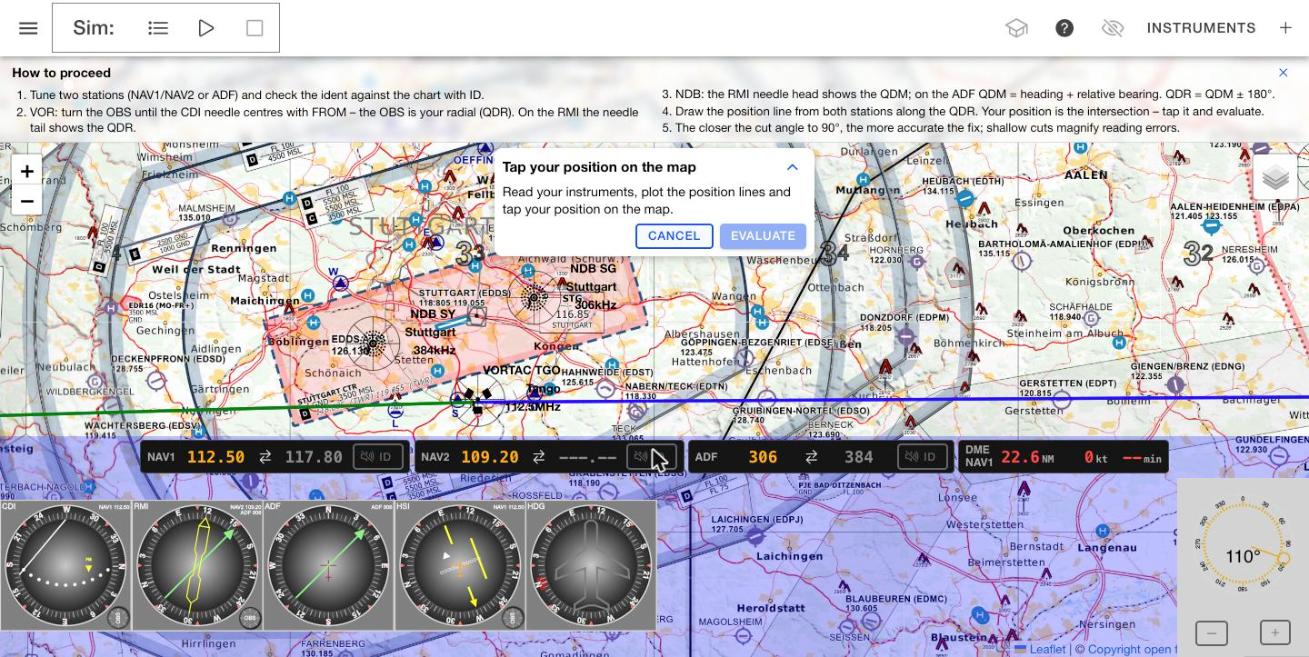
Procedure. The app moves the hidden aircraft to a place where two of your stations cross at 30° or more and turns it to an arbitrary heading. The simulation is stopped. You read, plot and tap your position on the map (tapping again corrects it), then Evaluate.
How to proceed
- Check with ID that the right stations are received.
- VOR: turn the OBS on the CDI until the needle centres with FM. The OBS is then your radial (QDR). On the RMI you read the QDR at the needle tail.
- NDB: on the RMI the needle head shows the QDM. On the ADF compute QDM = heading + relative bearing. The QDR is QDM ± 180°.
- Draw the position line from each station in the direction of the QDR. Your position is the intersection.
- Tap it and evaluate.
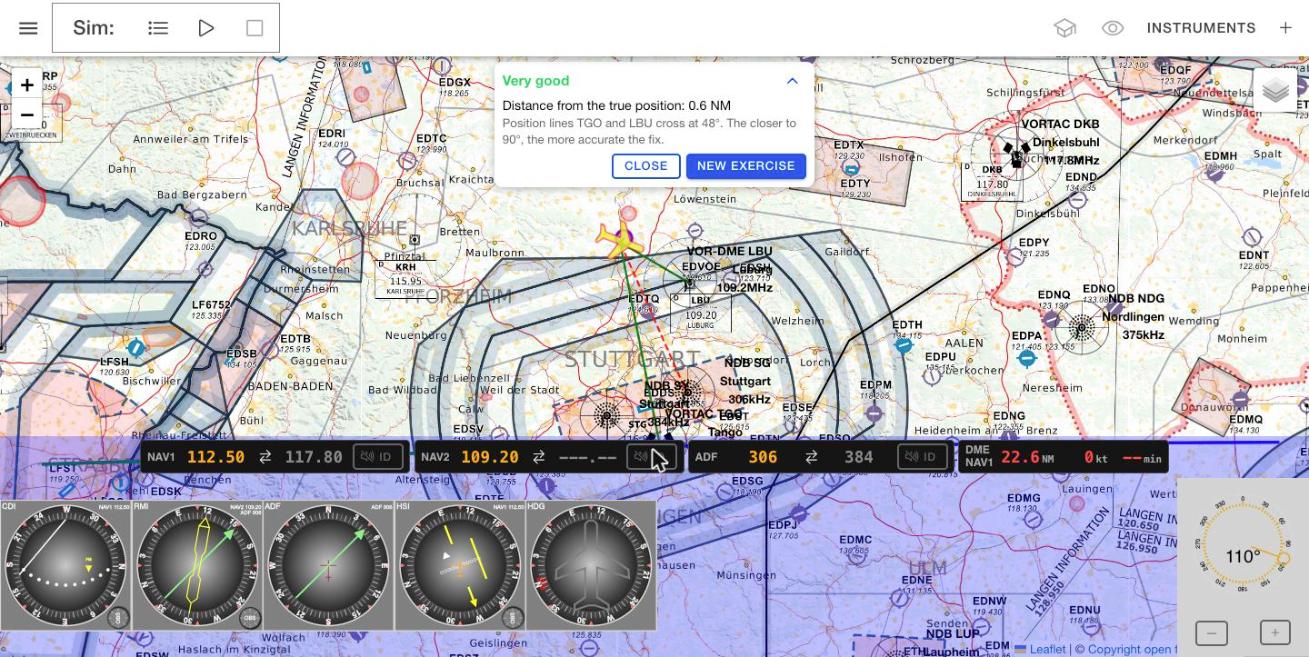
Result. The map shows your estimate (purple), the true position (aircraft) and both position lines (green). The task panel gives the error in NM and the cut angle of the position lines.
Typical errors
- QDM plotted instead of QDR – the position line then points the wrong way from the station; the error is usually very large.
- Relative bearing on the ADF taken as the QDM, heading not added.
- OBS centred with TO instead of FROM – the OBS is then the QDM, not the radial.
- Imprecise reading with a shallow cut: one degree of reading error then shifts the intersection many times over.
Have the first round solved with RMI and CDI and the second with the ADF only – that is where the heading + relative bearing arithmetic is practised. Shallow cut angles (30–45°) occur on purpose; they are a good opportunity to discuss station selection. In the debriefing look at the direction of the error: if the estimate lies on one position line, the other one was wrong.
Exercise: position with VOR/DME
Prerequisite: a VOR with DME (VOR-DME or VORTAC) active on NAV1 or NAV2.
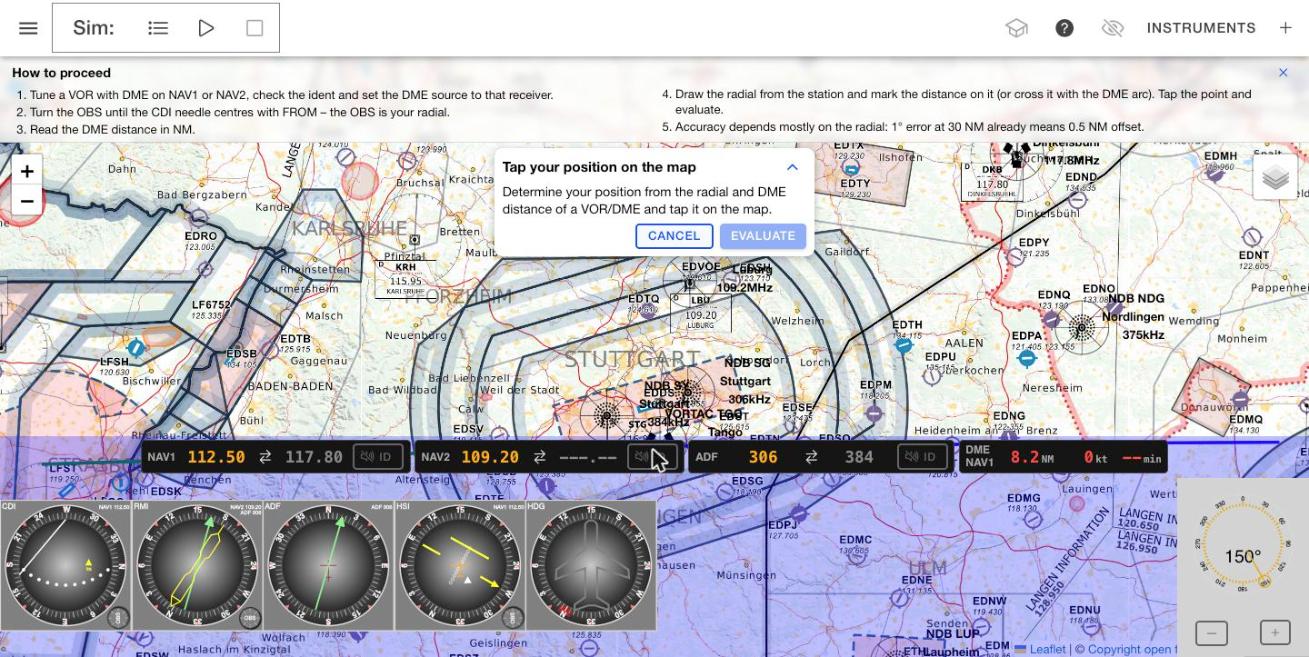
Procedure. The hidden aircraft is 4–30 NM from the station, within range of VOR and DME.
How to proceed
- Set the DME source to the radio the VOR/DME is tuned on (tap DME NAV1). If the station is on NAV2 and the DME on NAV1, it shows the distance to the other station – a typical cockpit error.
- Check the ident with ID.
- Centre the CDI with FM: the OBS is your radial.
- Read the DME distance.
- Draw the radial and mark the distance on it (or cross it with the DME arc). Tap the point and evaluate.
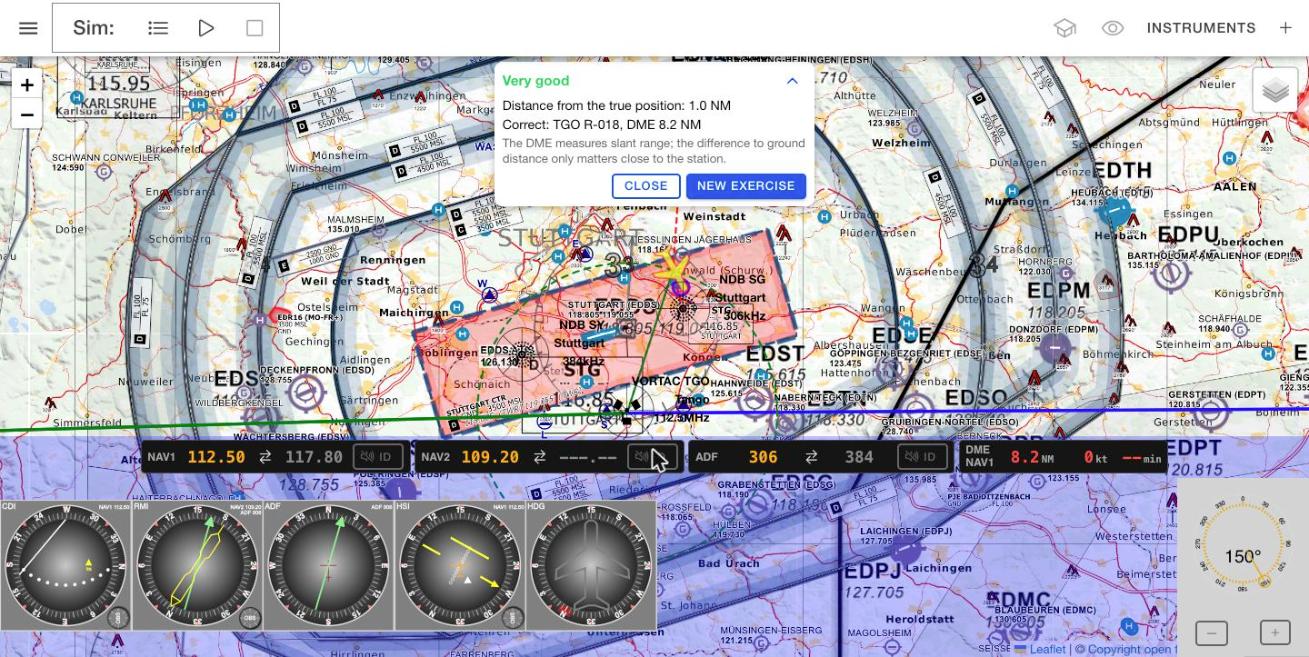
Result. Besides the error, the app gives the correct values, e.g. TGO R-018, DME 8.2 NM. Compare them with your reading: you immediately see whether the radial or the distance was wrong. The map shows the radial and the DME arc.
Accuracy depends mostly on the radial: 1° error at 30 NM already gives 0.5 NM offset across the radial, while the DME is accurate to a few tenths. Slant range does not matter at these distances – still a good occasion to mention it: overhead the station the DME shows the height.
Exercise: course to/from a station
Prerequisite: at least one actively tuned station.
Task. For example “Fly to VORTAC TGO on course 165° (radial 345 inbound)” or “Fly from NDB SG on course 140° (QDR 140°)”. The hidden aircraft starts next to the course line – inbound 15–25 NM out and 10–25° off the radial, outbound 3–6 NM out and 20–45° off. The geometry always leaves room to hold the course after a 45° intercept. The wind (10–25 kt) is unknown. The green desired course line is drawn on the map.
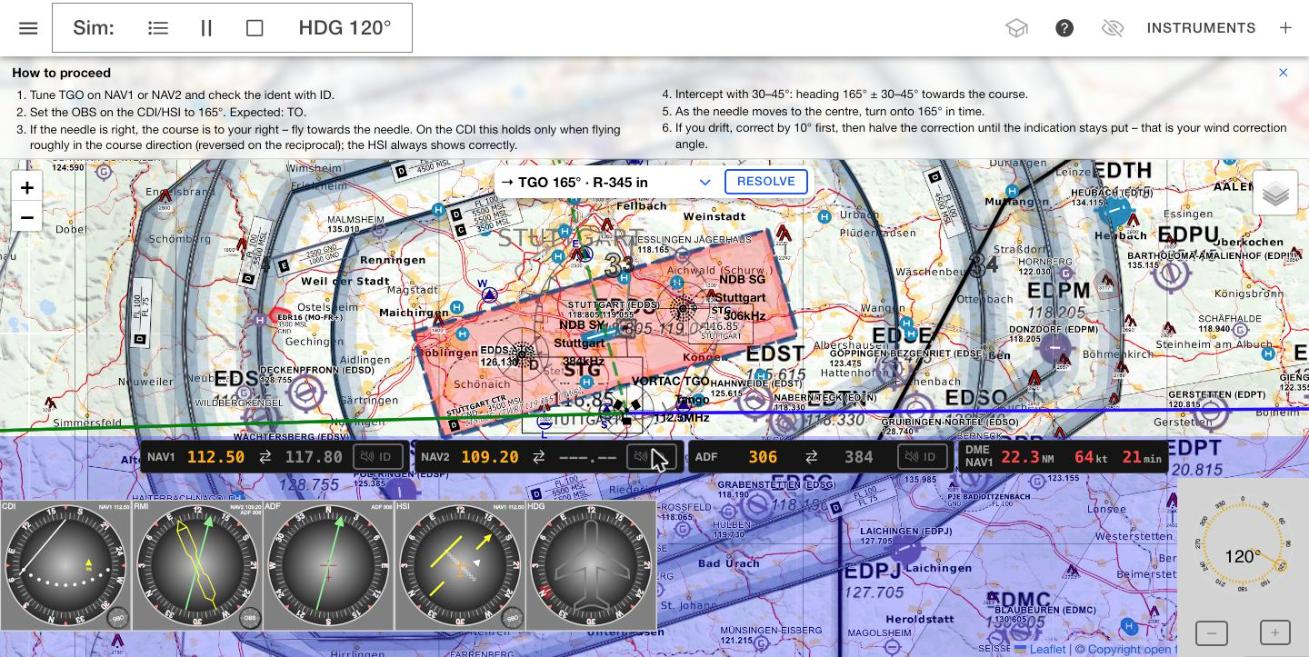
How to proceed
- Tune the station and check the ident.
- VOR: set the OBS on the CDI/HSI to the course, e.g. 165°. Expected: TO (to the station) or FROM (away from it). NDB: the target is QDM 165° (RMI needle head) or QDR 165° (needle tail).
- Find out on which side the course lies. VOR: on the side of the needle – on the CDI only when flying roughly in the course direction. NDB to the station: if the QDM is greater than the course, it lies to the right. NDB away from the station: if the QDR is smaller than the course, it lies to the right.
- Intercept with 30–45°: heading = course ± 30–45° towards the course.
- As the needle moves to the centre, turn onto the course in time.
- If you drift, correct by 10° first, then halve the correction until the indication stays put – that is your wind correction angle.
The exercise ends overhead the station (inbound) or 15 NM from it (outbound).
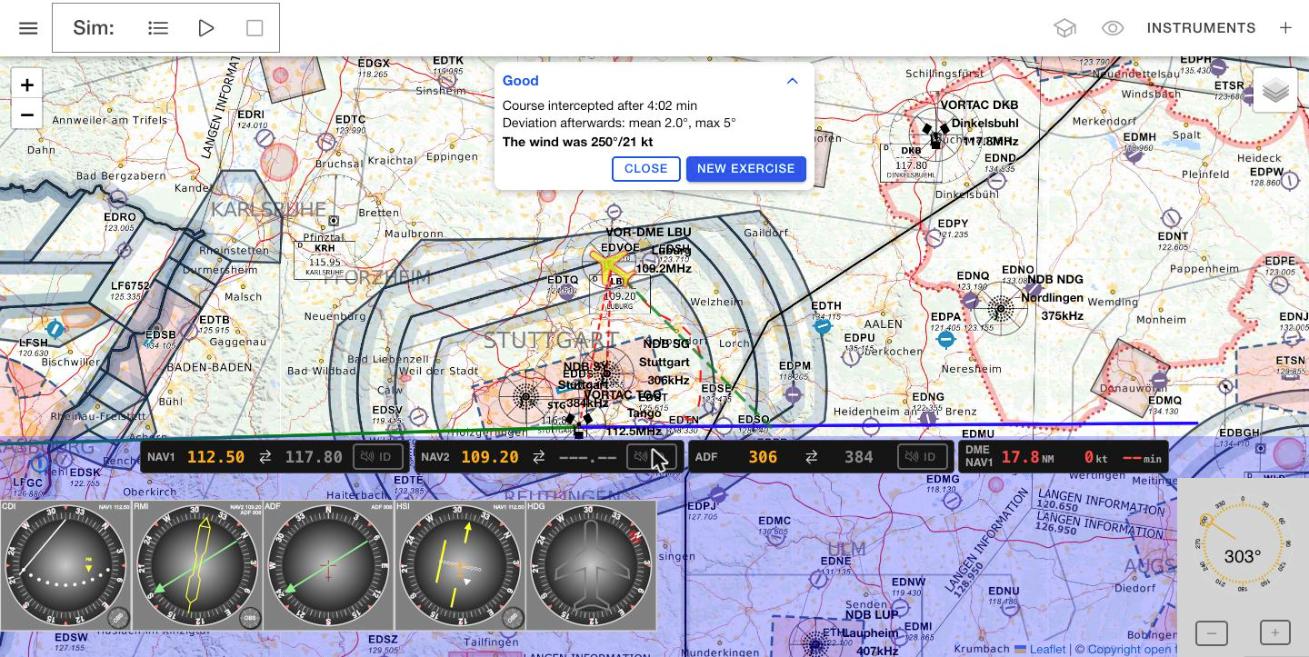
Result. The app gives the time to intercept (deviation below 2° for the first time) and then the mean and maximum angular deviation. Within 2 NM of the station there is no rating because the indication becomes unsteady there. Above all it reveals the wind – in the example 250°/21 kt: the heading of 303° on course 315° shows the 12° correction to the left.
Typical errors
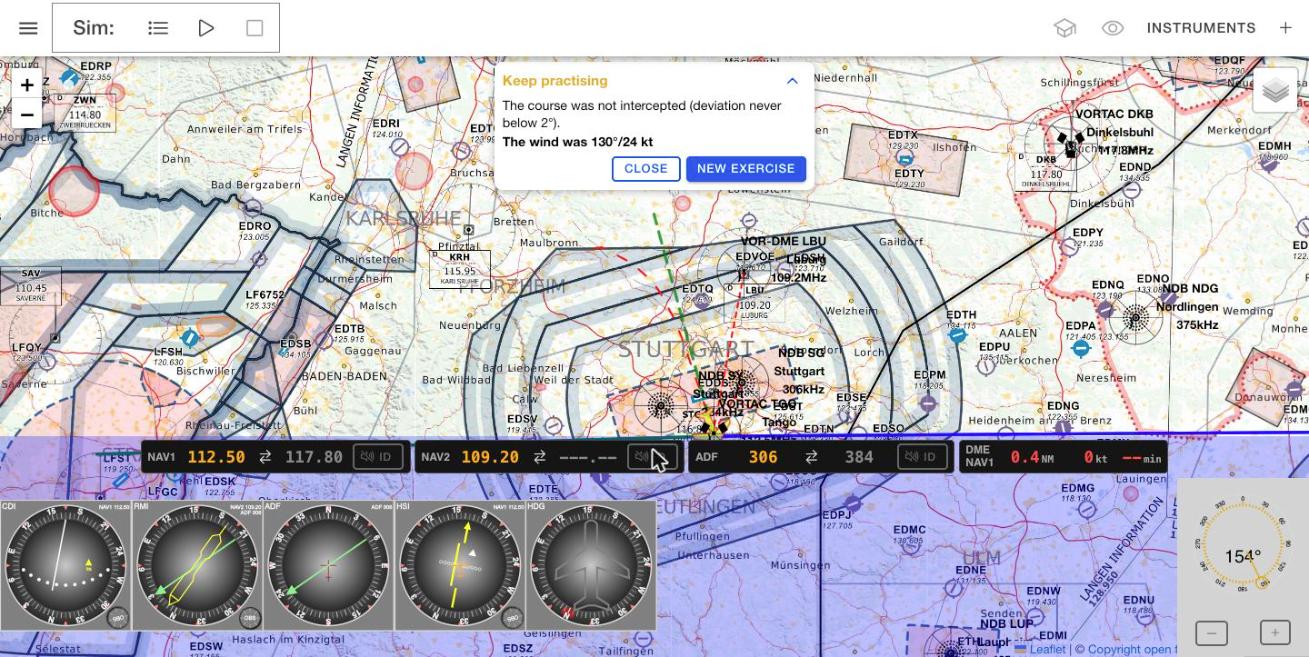
- No wind correction. Flying the course without correction after turning onto it means drifting off and correcting back again and again. In the picture above the path therefore runs parallel to the desired course line and the course is never intercepted.
- OBS set to the reciprocal (FROM instead of TO) – the CDI then shows the wrong way (reverse sensing). The HSI does not have this problem.
- Too shallow an intercept far out – the course is only intercepted shortly before the station.
- “Chasing the needle” instead of working with fixed headings.
Start without wind and with VOR and HSI, then CDI, then NDB. Wind and heading can also be set in the simulation menu for a free exercise; in the exercise task the wind is hidden and only revealed in the result – the key moment of the debriefing: does the flown correction angle match the revealed wind? The 2° threshold is strict for NDB tasks; a deviation up to 5° is already a good result on the ADF.
Exercise: holding
Prerequisite: an actively tuned VOR or NDB as the fix.
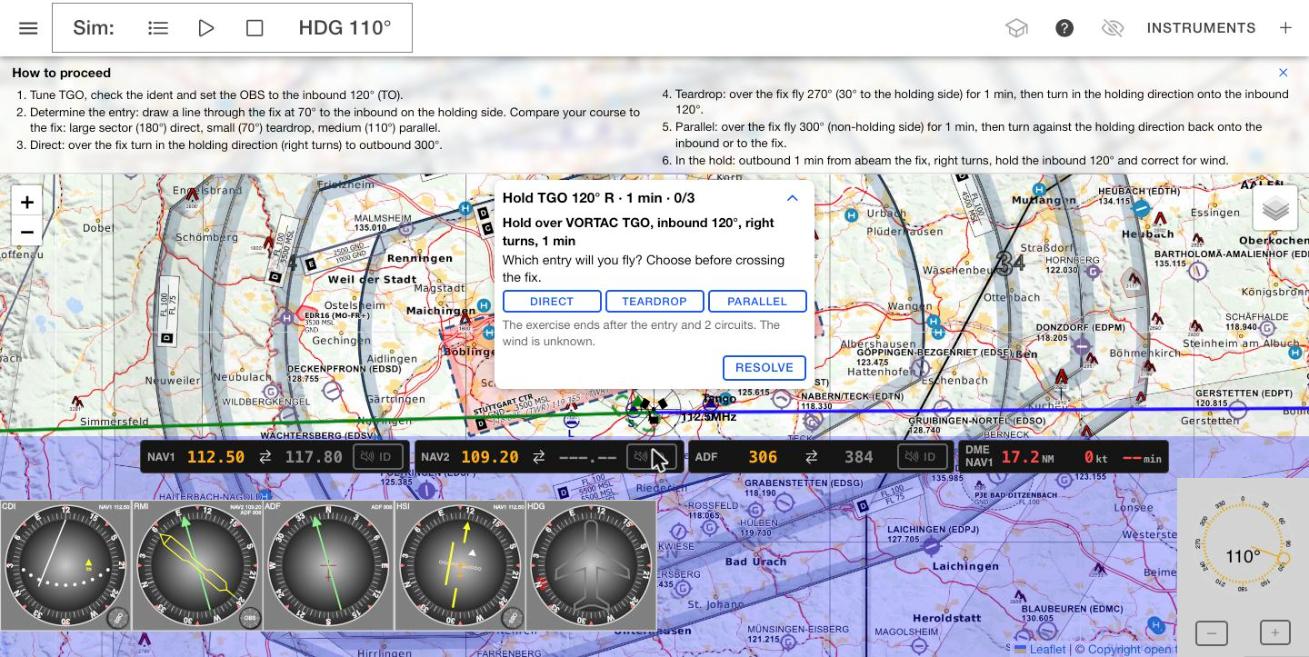
Task. For example “Hold over VORTAC TGO, inbound 120°, right turns, 1 min”. About 70 % of the tasks use right turns (standard). The aircraft starts 12–18 NM away from a random direction and heads roughly towards the fix; the wind is light (up to 15 kt) and unknown. The hold is drawn on the map like on an approach chart, with an arrow on the inbound leg.
Determining the entry
The reference is the inbound course. Draw a line through the fix at 70° to the inbound course on the holding side. Together with the extension of the inbound course it divides the circle into three sectors. Your course to the fix decides:
| Sector | Size | Course to the fix, right turns (inbound T) | Entry |
|---|---|---|---|
| 1 | 180° | T − 70° … T + 110° | Direct |
| 2 | 70° | T + 110° … T + 180° | Teardrop |
| 3 | 110° | T + 180° … T + 290° | Parallel |
For left turns everything is mirrored. Choose the entry in the task panel before crossing the fix. The app checks your choice against your track at the first fix passage.
The entries
- Direct: over the fix turn in the holding direction onto the outbound course (inbound + 180°).
- Teardrop: over the fix fly an outbound course offset 30° to the holding side (for right turns outbound − 30°) for 1 minute, then turn in the holding direction onto the inbound.
- Parallel: over the fix fly the outbound course on the non-holding side for 1 minute, then turn against the holding direction back onto the inbound or to the fix.
In the hold: outbound 1 minute from abeam the fix, turns in the holding direction, hold the inbound course and correct for wind. The guide (?) gives all headings with the numbers of the task – it does not say which entry is correct.
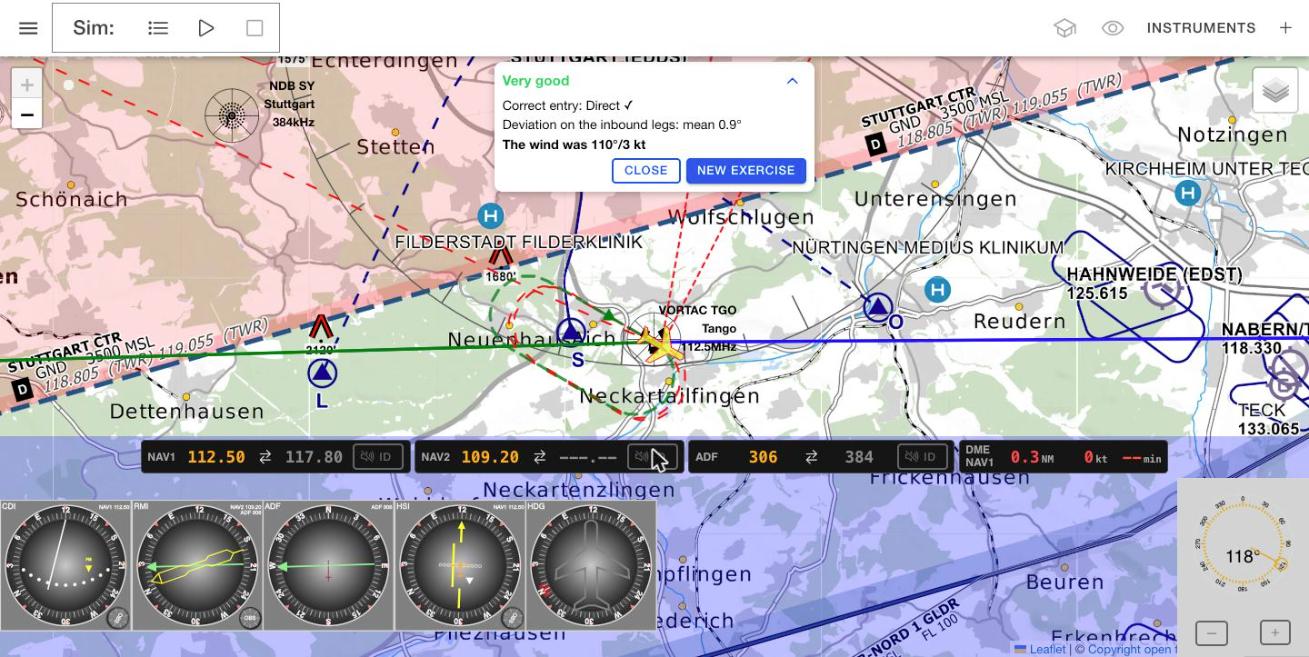
Result. After the entry and two circuits (three fix passages) or with Resolve, the app shows the correct entry and whether your choice was right, the mean deviation on the inbound legs and the wind. The map zooms to the fix and shows the ideal hold (green) and your path (red).
Typical errors
- Sector determined against the wrong reference, e.g. the outbound instead of the inbound course.
- Parallel entry: turning back in the holding direction – you end up on the wrong side of the inbound leg.
- Teardrop: offset taken to the wrong side.
- Outbound time started at the fix instead of abeam the fix.
Have the sector rule applied on paper first. The aircraft starts heading roughly towards the fix, so the student can determine the entry right at the beginning; ‖ pauses the simulation for that. The app rates the sector boundaries strictly; ICAO allows ±5° there – an entry that is narrowly “wrong” at a boundary is therefore acceptable and a good talking point. How the entry was flown (offset, timing) is not rated; the map shows it in the result. The drawn hold is for still air.
Suggested lesson plan
One possible order, each with a briefing before and a debriefing after the exercise:
- Orientation with ADF and RMI (without blind mode): drag the aircraft on the map and read relative bearing, QDM and QDR. Change the heading – the ADF needle moves, the QDM on the RMI stays.
- Cross bearing with RMI and CDI, then with the ADF only.
- CDI and HSI: TO/FROM, reverse sensing on the reciprocal, HSI in comparison.
- Course exercises: first VOR without wind in free flight, then the exercise with hidden wind; then NDB.
- VOR/DME position with deliberate switching of the DME source.
- Holding: sector rule, then entries, then wind.
End each lesson by listening to the ident – tune, identify, then use.
Custom scenarios for instructors
The random exercises are good for free practice. In a lesson you often want a specific situation: this starting point, this radial, this wind, and the same for every student. That is what custom scenarios are for. You define an exercise once and pass it on as a link or QR code; students open it in the web app and fly exactly that task. Nobody needs an account or a login.
Creating a scenario
- Set up the situation. In the simulator choose the training area, drag the aircraft to the start position, set heading, altitude and TAS, and tune the radios the way the student should find them.
- Mortarboard → My scenarios → Save current situation as scenario.
- Define the task: title, type of exercise (position, VOR/DME, course, holding), station and, depending on the type, course with TO/FROM, end distance, or inbound course and turn direction. Only stations received at the start position are offered. Heading, altitude and TAS can still be adjusted here.
- Wind (course and holding): direction and speed, and whether the student knows the wind or only learns it in the debrief.
- Tune the radios for the student: when on, the student finds your frequencies. When off, all radios are switched off; tuning and identifying become part of the task.
- Briefing: a short text for the student (up to 600 characters). It stays in the task card for the whole exercise.
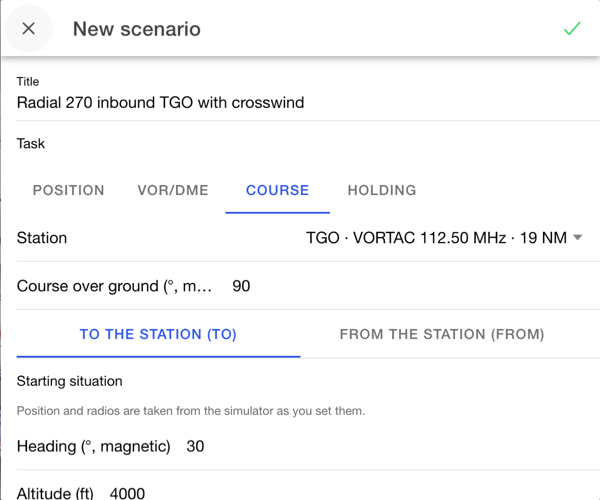
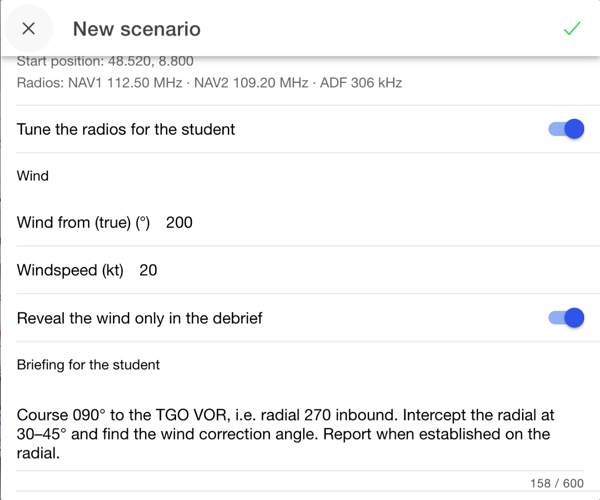
Below the form the app points out problems without preventing you from saving: the station cannot be received at the start position, the lines of position cross at less than 30°, the start position is already beyond the end distance, the wind is very strong compared with the TAS, or the task's station is not tuned as active frequency on any radio.
Sharing
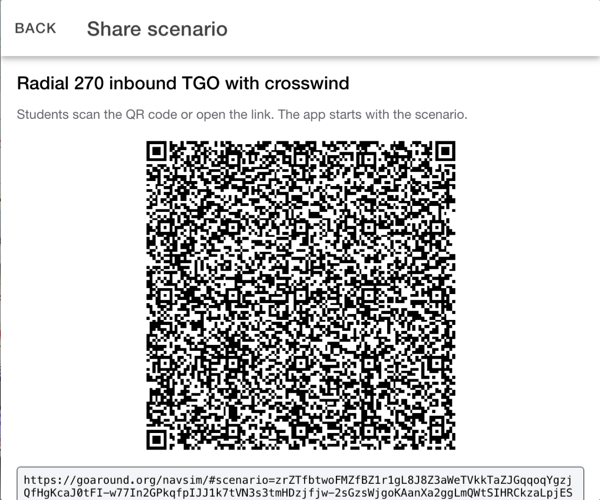
After saving, the app shows the QR code and the link. Project the QR code in the classroom, or copy the link into an e-mail or a messenger. Later you get the same view through the share icon in the list.
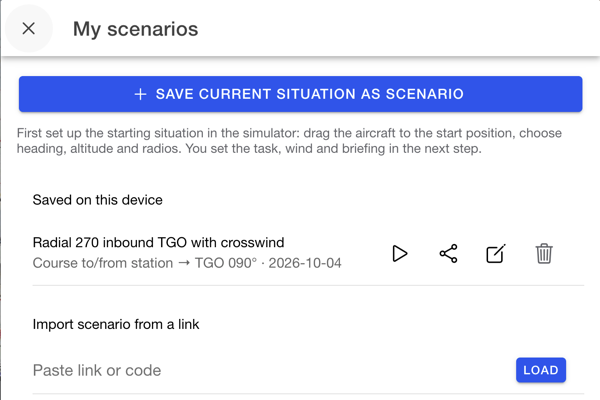
The scenario is entirely contained in the link; it is not stored on any server. Three things follow: anyone with the link can open the scenario. A link that has been sent cannot be recalled or changed afterwards; after a change, share a new link. And the briefing should not contain anything that not everyone may read.
Your scenarios are stored only on your device. To move them to another device, share them with yourself.
What the student sees
The link opens the web app. It shows title, task and briefing and offers Save and start, Save only or Discard. In the installed app the student copies the link and pastes it under My scenarios → Import scenario from a link.
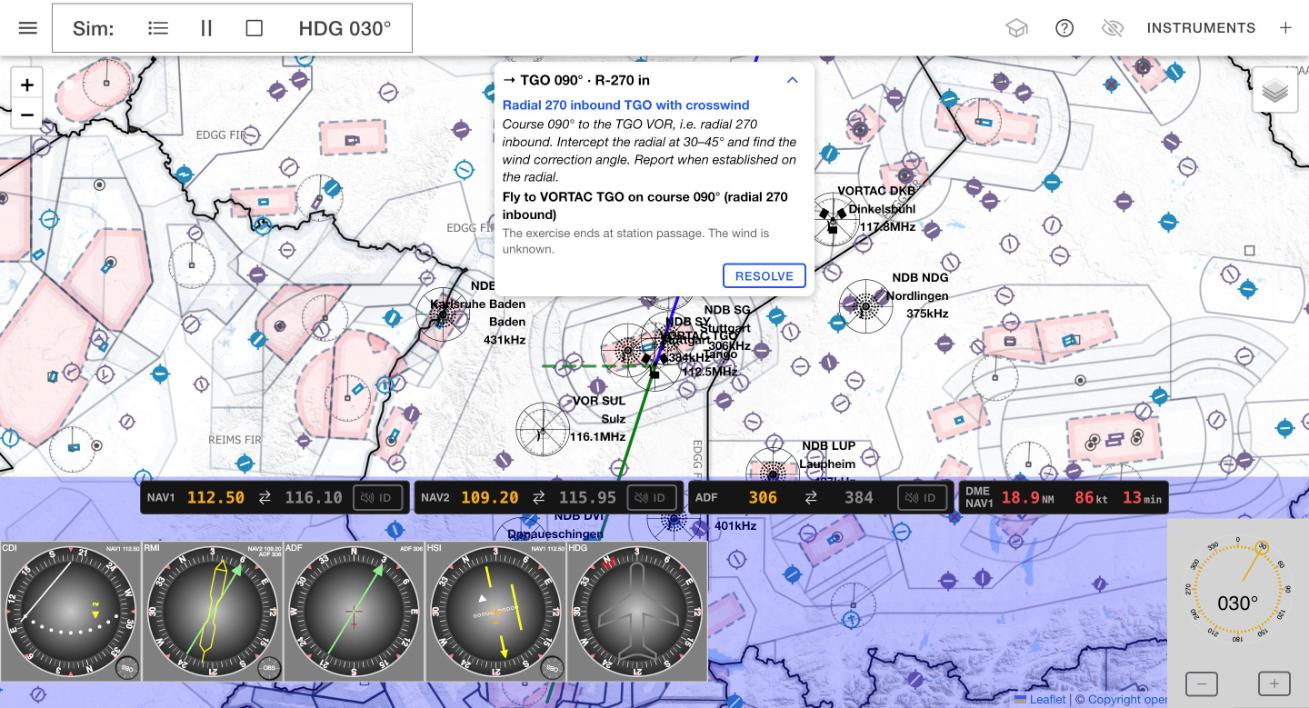
On start the app loads the stations of the area, takes over altitude, TAS and radios, places the aircraft hidden at the start position and begins the exercise. Procedure and rating are the same as for the random exercises; the task card additionally shows title and briefing. After the debrief the button reads Repeat instead of “Next task”: the student flies the same task again.
The debrief appears on the student's device and is not transmitted. Scenarios are meant for lessons where you are present and discuss the result with the student.
When stations change
Navaids are decommissioned or get new frequencies. Every scenario therefore carries a copy of the stations it uses. On start the app compares them with the current database: if a frequency has changed, the radios are adjusted and the student gets a note. If a station is missing, the app keeps working with the stored copy and also says so. Offline the scenario runs with the copies.
Good scenarios target a typical mistake: a FROM course with reverse sensing on the CDI, an NDB course exercise with a strong crosswind, a holding whose approach lies just next to a sector boundary, a cross bearing with a poor cut angle. With the radios switched off you also practise tuning and identifying.
Not part of the scenario are the student's indicators (which instrument is connected to which radio) and the OBS. If a particular instrument is to be practised, say so in the briefing.
Terms
| Term | Meaning |
|---|---|
| QDM | magnetic course to the station |
| QDR | magnetic bearing from the station to the aircraft; for a VOR the radial |
| Radial | magnetic direction from a VOR on which the aircraft is (= QDR) |
| Relative bearing | angle from the aircraft's nose to the station, clockwise |
| OBS | Omni Bearing Selector – course selector on the CDI/HSI |
| TO/FROM | whether the selected course leads to or away from the station |
| Variation | angle between true and magnetic north; east positive |
| VOR declination | variation the radials of a VOR are aligned to |
| Slant range | direct distance aircraft–DME, including height |
| Intercept | joining a course at a fixed angle |
| Wind correction angle (WCA) | difference between heading and track to compensate for wind |
| Reverse sensing | reversed CDI indication when flying against the selected course |
| Standard rate turn | turn at 3°/s, full circle in 2 minutes |
Limits of the simulation
The simulator is a training tool and not intended for real navigation. Deliberate simplifications:
- Variation comes from the station data; some values are outdated. At the aircraft the variation of the nearest station applies.
- Range: VOR and DME by radio horizon from the selected altitude, NDB a flat 50 NM. Terrain, night and coastal effect, thunderstorms and sky waves are not simulated; the indications are always steady and exact.
- No altitude changes, turns without bank, the same wind at all altitudes.
- The route autopilot flies directly to the next waypoint after each waypoint without re-intercepting the leg.
- The drawn hold is for still air; the holding fix is always a station and the leg time a fixed 1 minute.
- The Morse ident is synthesised; NDBs use 400 Hz to tell them apart.
Settings
In the app menu (☰ → Settings) you choose language, country for the station search, start page, dark mode and the instrument size – larger instruments are easier to read on a projector in class. The distance unit (NM by default) is under Default units.