METAR Watch – User Guide
METAR Watch shows the current aviation weather (METAR and TAF) for the nearest airport or one you choose – on your iPhone, Apple Watch, in Lock Screen widgets and as a Live Activity.
- Getting started
- Main screen
- Choosing an airport
- Map
- Summary (Apple Intelligence)
- Apple Watch · Complications
- Widgets & Live Activity
- Settings & units
- FAQ
The screenshots show the app with its German interface.
Getting started
On first launch the app asks for permission to use your location so it can find the nearest airport with a METAR. Without location access you can still choose an airport manually (see Choosing an airport).
To keep the Lock Screen and watch up to date in the background, allow location access “Always” (see Widgets & Live Activity).
Main screen
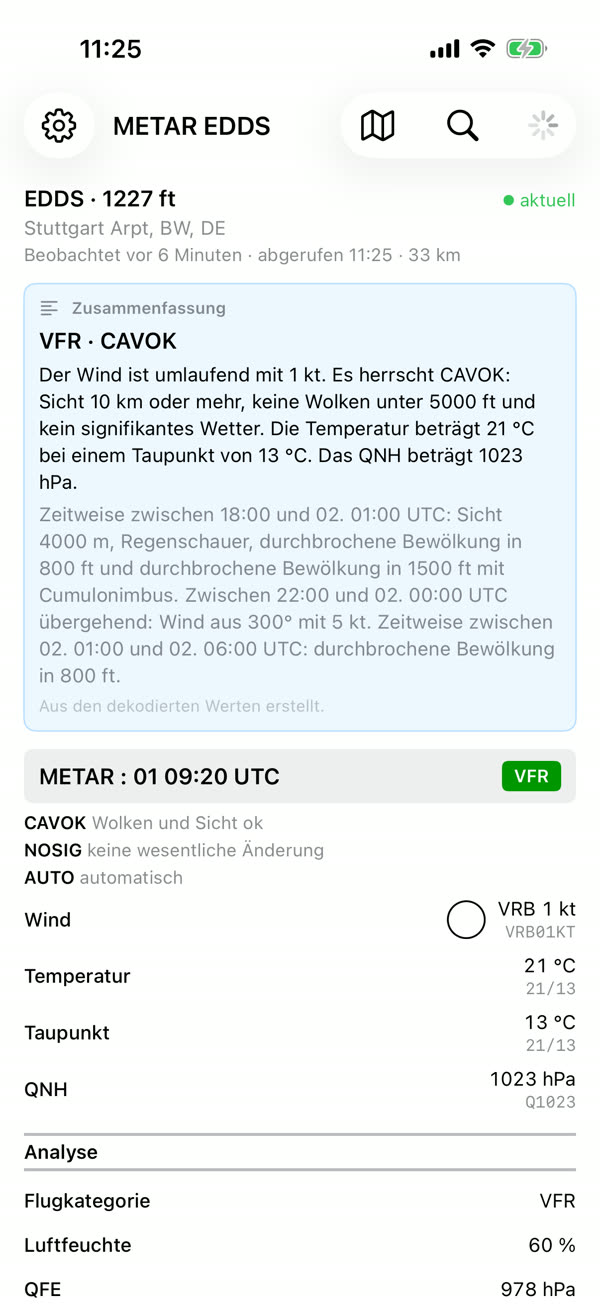
The main screen shows for the current airport:
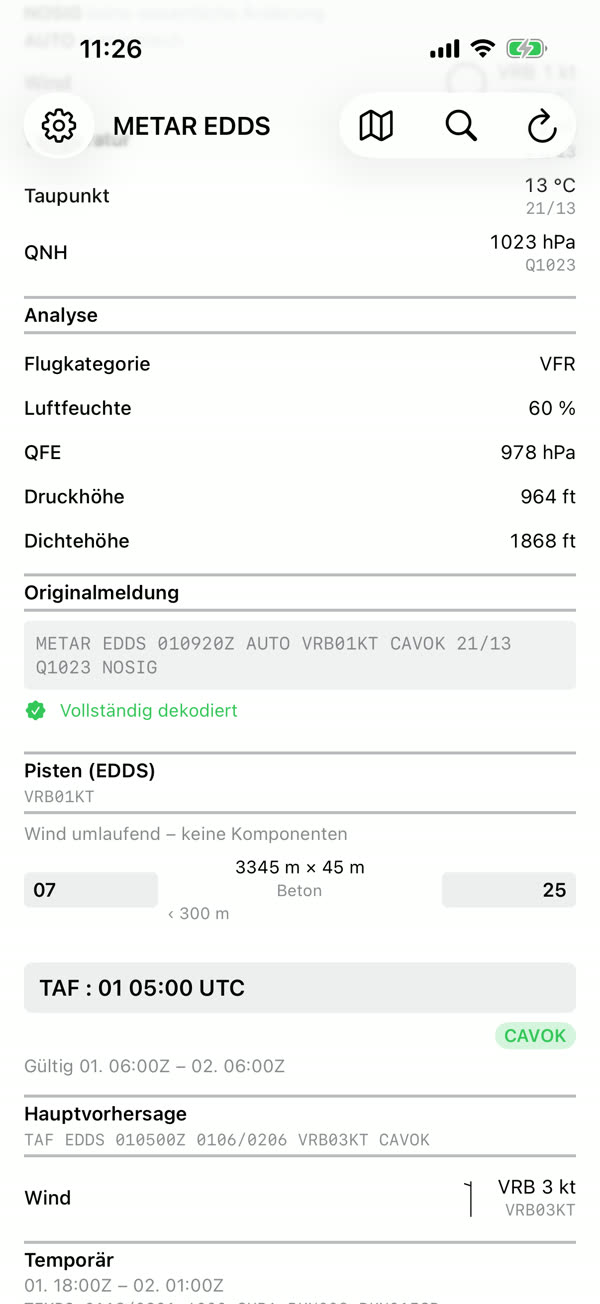
- METAR – raw text and decoded values (wind, visibility, weather, clouds, temperature/dew point, QNH) plus the colour-coded flight category (VFR, MVFR, IFR, LIFR).
- Runways – headwind/tailwind and crosswind component for each runway, calculated from the reported wind.
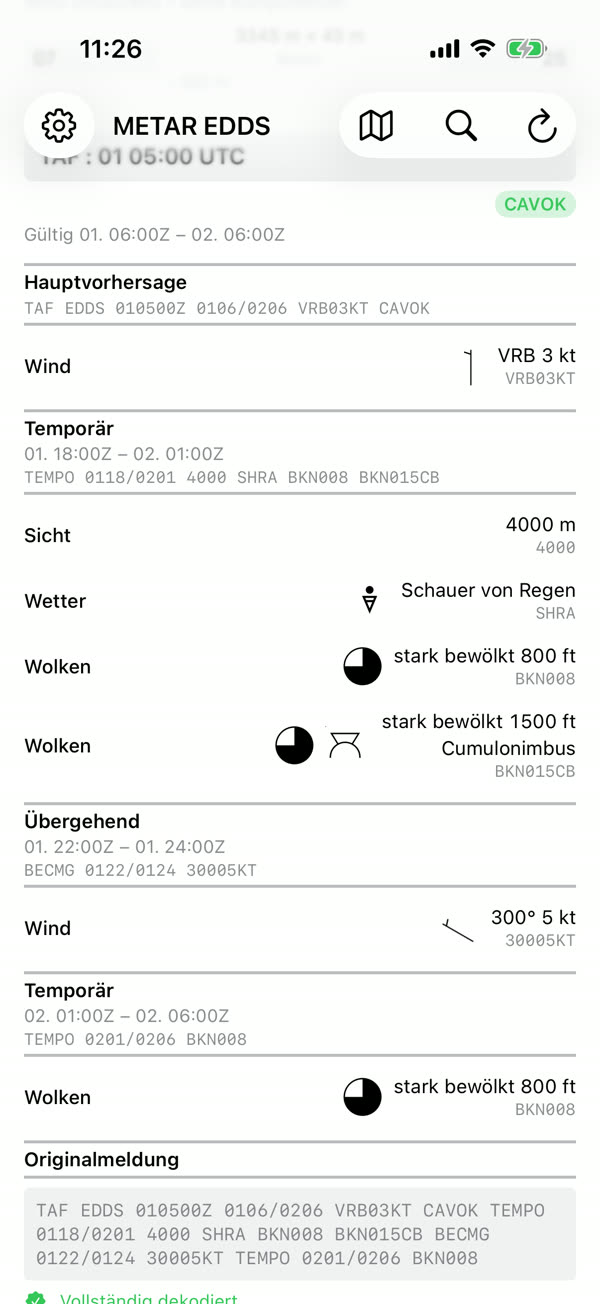
- TAF – the current terminal aerodrome forecast, if one is issued for the airport.
Below the airport name you can see when the METAR was observed and fetched. A coloured marker shows whether it is current, delayed or outdated. Pull down to refresh manually.
If the chosen airport has no METAR station of its own, the app shows the METAR of the nearest station and says so (“METAR from …”).
Choosing an airport
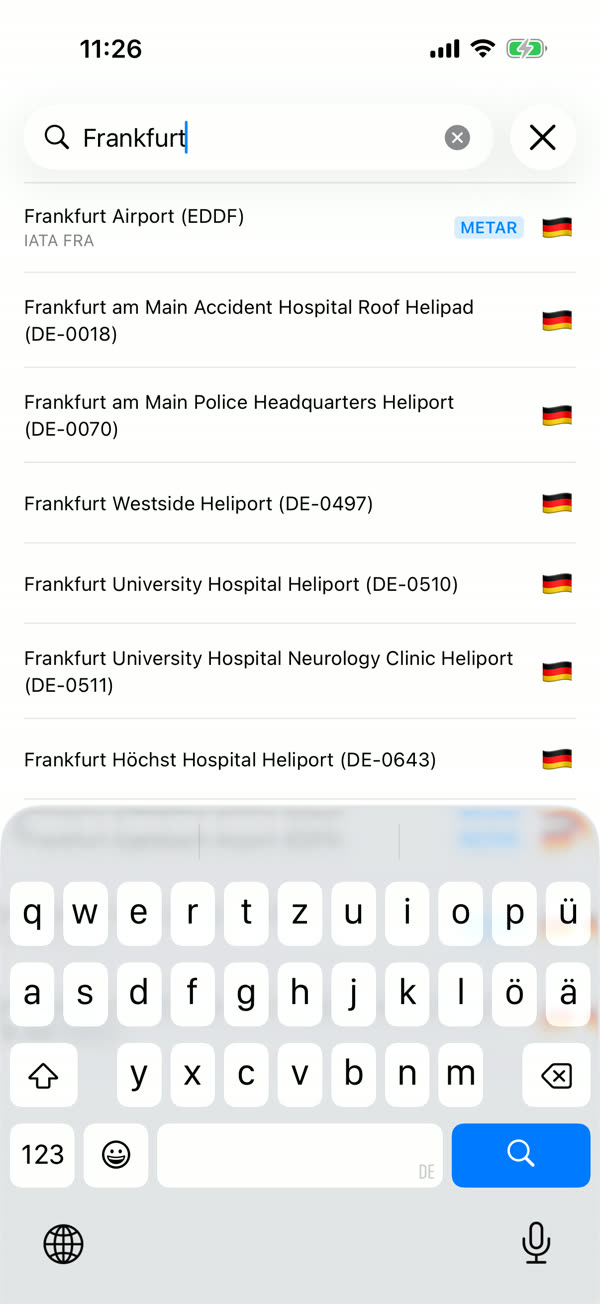
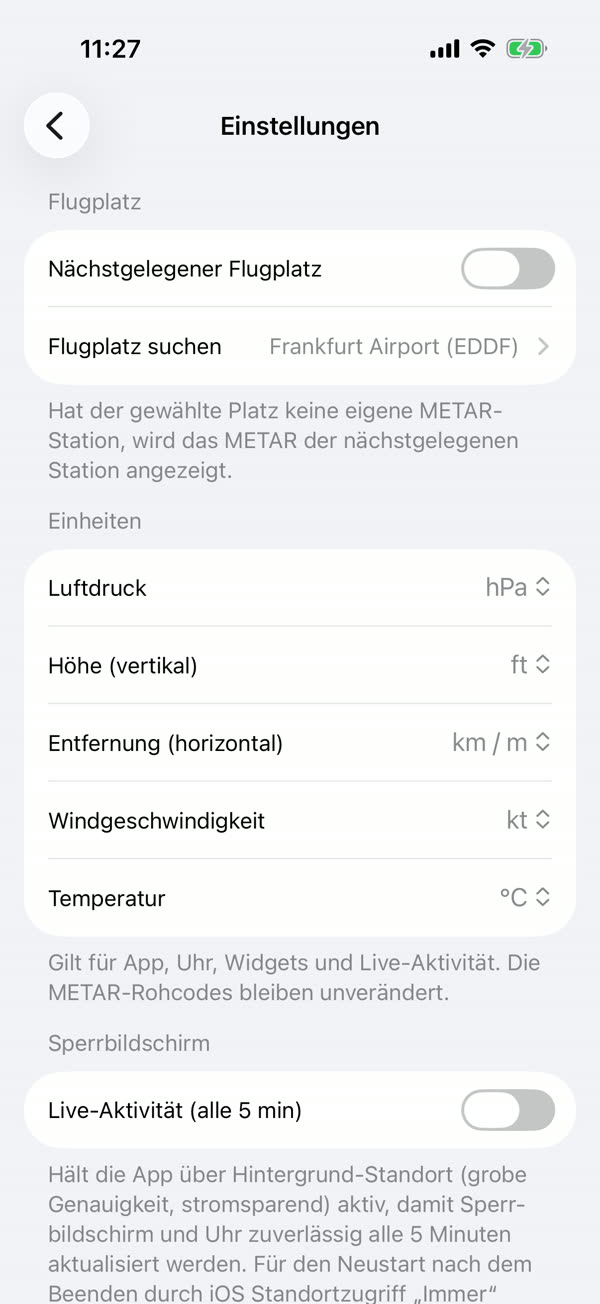
By default the app uses the nearest airport. To pick a fixed airport, tap the magnifying glass on the main screen, or turn off “Nearest airport” in Settings and open “Search airport”.
You can search by name, ICAO or IATA code; the filter icon restricts the search to one country. To go back to the nearest airport, turn “Nearest airport” on again in Settings.
Map
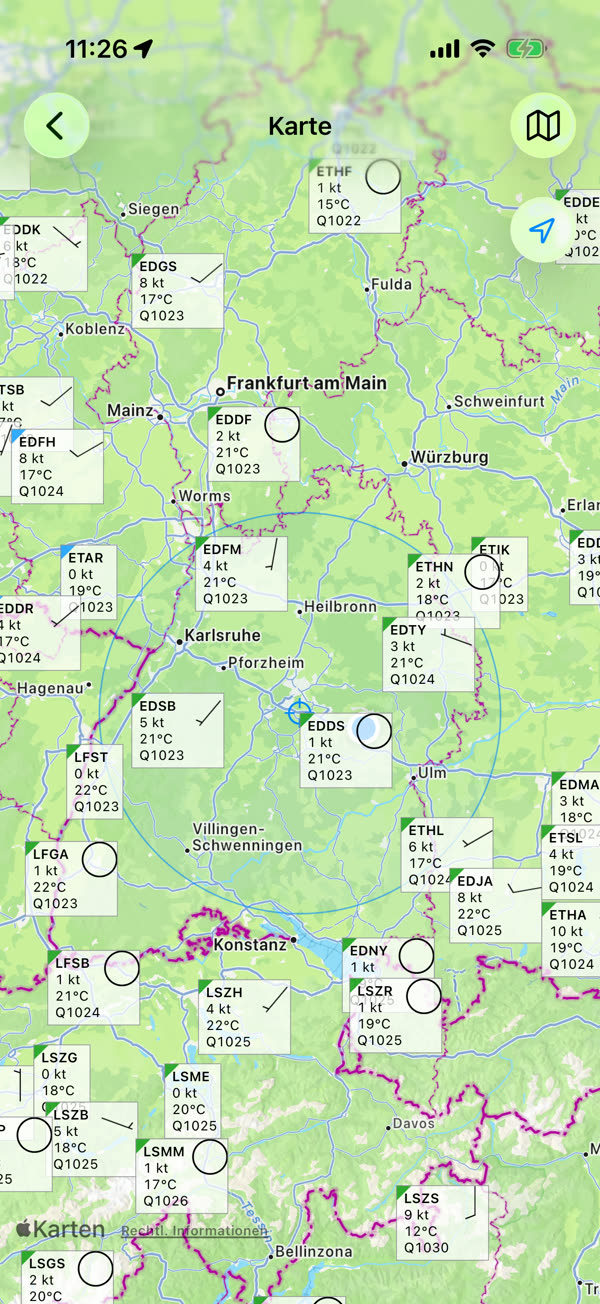
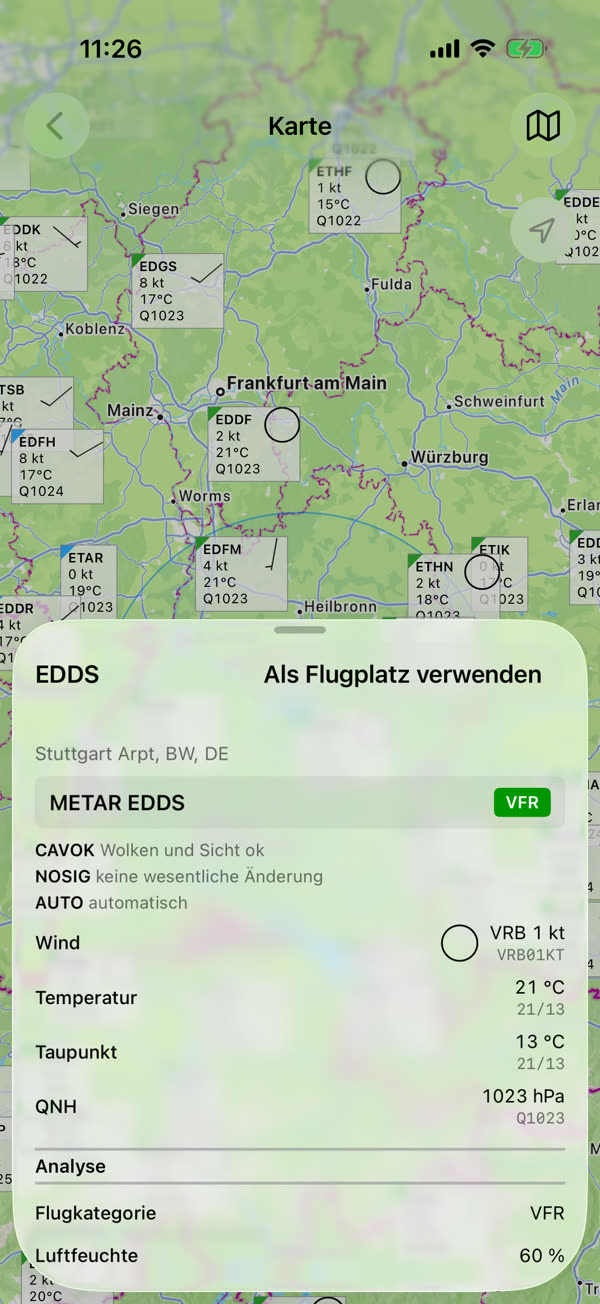
The map shows all METAR stations in the visible area with flight category, wind arrow, temperature and QNH. If the area is very large, zoom in so the stations are loaded. Tap a station to open its decoded METAR; “Use as airport” makes it your fixed airport.
Summary (Apple Intelligence)
The “Summary” card describes the weather in full sentences and highlights cautions such as strong gusts, low visibility, a low ceiling or fog risk. The text is always generated by rules from the decoded values.
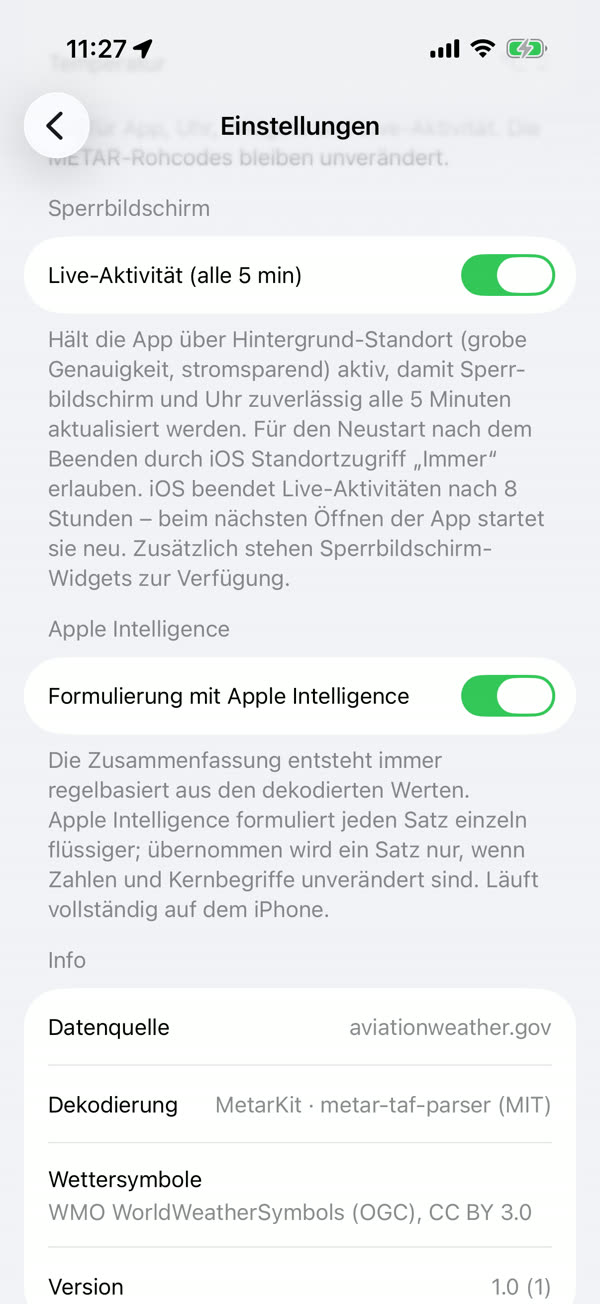
On devices with Apple Intelligence each sentence can additionally be reworded more fluently. A reworded sentence is only used if all numbers and key terms are unchanged; otherwise the original sentence is kept. Processing happens entirely on the device. You can turn this off in Settings.
Apple Watch
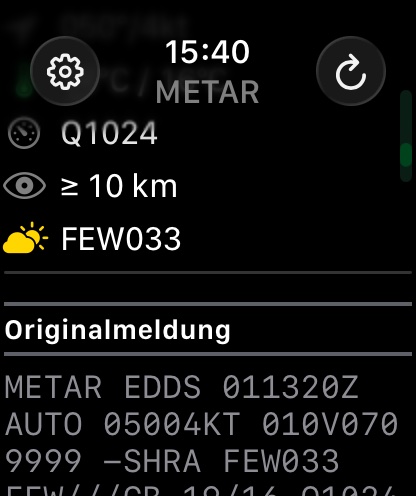
The watch app shows the current airport's METAR with decoded values and summary. Airport choice and units are taken from the iPhone; under “Airport” on the watch you can also switch between the nearest airport and a fixed airport.
Scrolling with the Digital Crown, you'll see in turn:
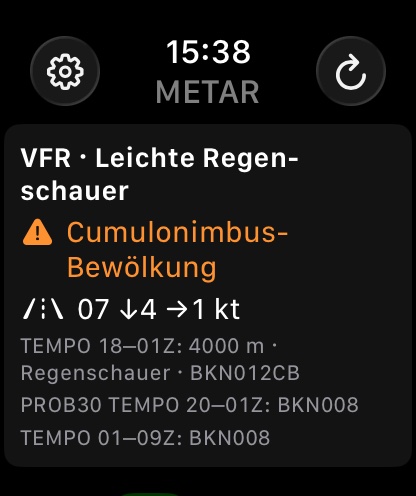
- Summary – flight category, weather, warnings (e.g. cumulonimbus), runway wind with headwind/crosswind components and the TAF groups.
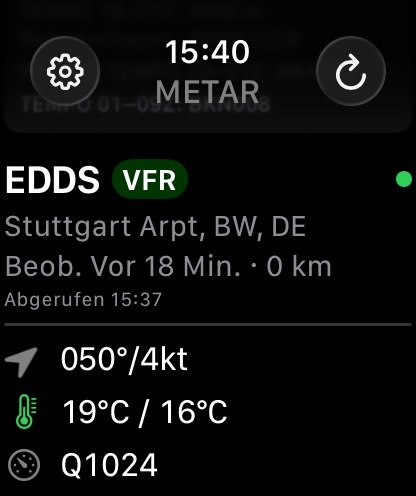
- Station – ICAO code, category, name, observation age, distance and fetch time; the coloured dot shows whether the METAR is current, delayed or outdated.
- Values – wind, temperature/dew point, QNH, visibility and clouds.
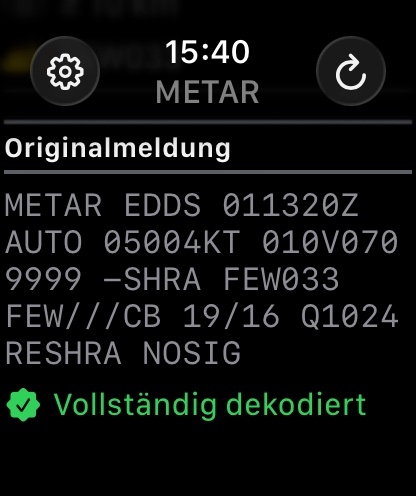
- Raw report – the raw METAR text, with a note on whether it could be fully decoded.
The gear icon at the top left opens the settings; the arrow at the top right reloads the METAR.
Complications
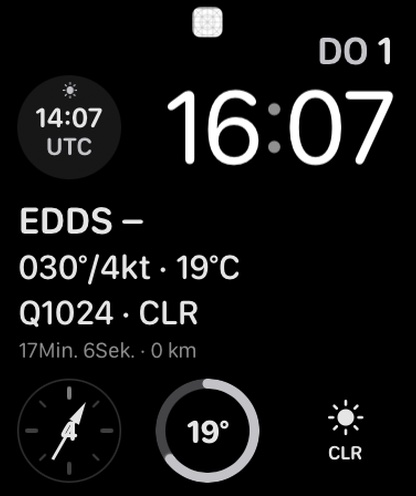
Four complications are available for your watch face. To add one: long-press the watch face → “Edit” → swipe to the complications → tap a slot → METAR Watch.
| Complication | Content |
|---|---|
| METAR | ICAO code, wind, temperature, QNH and clouds; the large (rectangular) slot also shows the flight category and report age, the circular slot shows QNH and wind speed |
| Wind | Wind direction as an arrow in a compass rose (north up) with wind speed; a circular-arrows symbol for variable wind |
| Temperature | Temperature as a ring gauge; the large slot also shows the dew point |
| Clouds | Symbol for the significant cloud layer with cover and height (e.g. BKN012, CLR for clear sky); the large slot also shows visibility |
All complications come in circular, rectangular, corner and inline sizes. They update about every 5 minutes, even when the app isn't open. If the METAR is delayed or outdated, a warning triangle appears; outdated values are also dimmed. Tapping a complication opens the app.
The same four displays are available on the iPhone as Lock Screen widgets (see Widgets & Live Activity).
Widgets & Live Activity
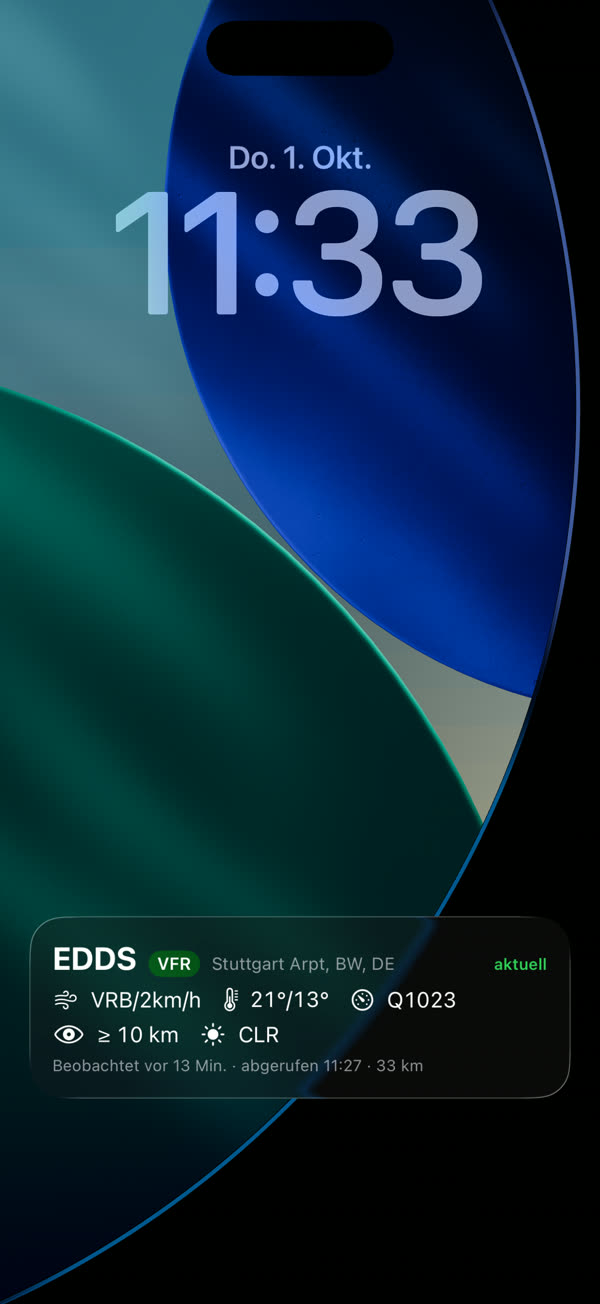
Lock Screen widgets: METAR (wind, QNH, temperature, clouds), Wind, Temperature and Clouds. To add one: long-press the Lock Screen → “Customize” → tap the widget area → METAR Watch.
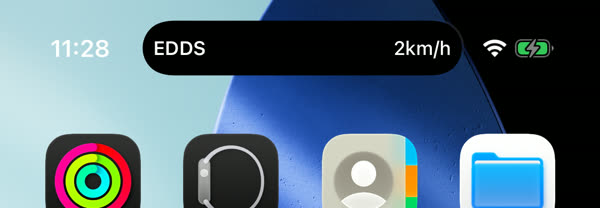
The Live Activity (Settings → Lock Screen) keeps the METAR on the Lock Screen and in the Dynamic Island and refreshes it about every 5 minutes. To do so, the app keeps itself active using background location (reduced accuracy, low power). Allow location access “Always” so the app can restart after iOS terminates it. iOS ends Live Activities after 8 hours; it restarts the next time you open the app.
Settings & units
Open Settings with the gear icon on the main screen. Available units:
| Setting | Options |
|---|---|
| Pressure | hPa, inHg, mmHg |
| Altitude (vertical) | ft, m |
| Distance (horizontal) | km / m, SM, NM |
| Wind speed | kt, km/h, m/s, mph |
| Temperature | °C, °F |
Units apply to the app, watch, widgets and Live Activity. Raw METAR codes stay unchanged.
FAQ
Why is a different airport shown than expected?
If the airport has no METAR station of its own or its METAR is outdated, the app uses the nearest
station with a current METAR.
Where does the data come from?
METAR and TAF come from aviationweather.gov
(NOAA/NWS), airport and runway data from goaround.org.
Important: METAR Watch is not an official aviation weather briefing. Always check official sources before flight.
Privacy policy · Support: ds@goaround.org · ← Back to home